
AI voice cloning tools in DaVinci
Create a realistic AI version of your voice from a short audio clip. Preserve tone, accent, and speaking style while producing voiceovers faster and scaling content across different languages and projects.
Clone your voice in seconds
DaVinci uses advanced AI voice cloning technology to create realistic, human-like voices while keeping your data secure. Upload a short audio sample and generate your custom voice in minutes.
Try Voice Cloning
Voice Cloning
ElevenLabs Voice Cloner
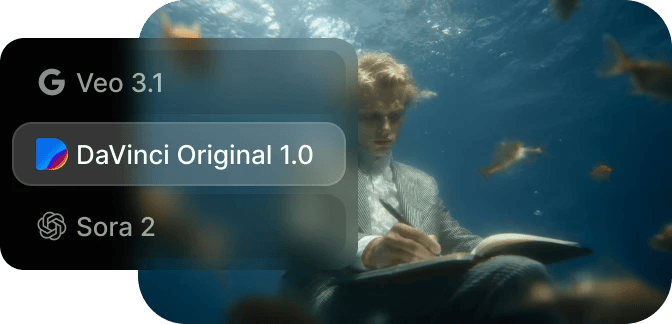
Advanced voice cloning technology that delivers natural, lifelike speech across multiple languages, making it ideal for narration, media creation, localization, and professional audio projects. DaVinci users prefer it for multilingual campaigns, branded content, and high-quality voice production workflows.
How to use DaVinci AI voice cloning
DaVinci voice cloning gives you a fast and secure way to create custom AI voices. Test advanced voice models, keep control over your cloned voices, and use them across your creative projects.
Try Voice Cloning
Open the AI voice generator
Select Custom Voice and upload a short audio sample.
Name your custom voice
Add a name and description to keep your voices organized.
Use it in any project
Your custom voice will be saved in your DaVinci account and ready to use across your projects.
Create anything you want with DaVinci AI Toolkit
One workspace for intuitive image, video, and voiceover generation — so you can take on your biggest creative projects without switching tools.
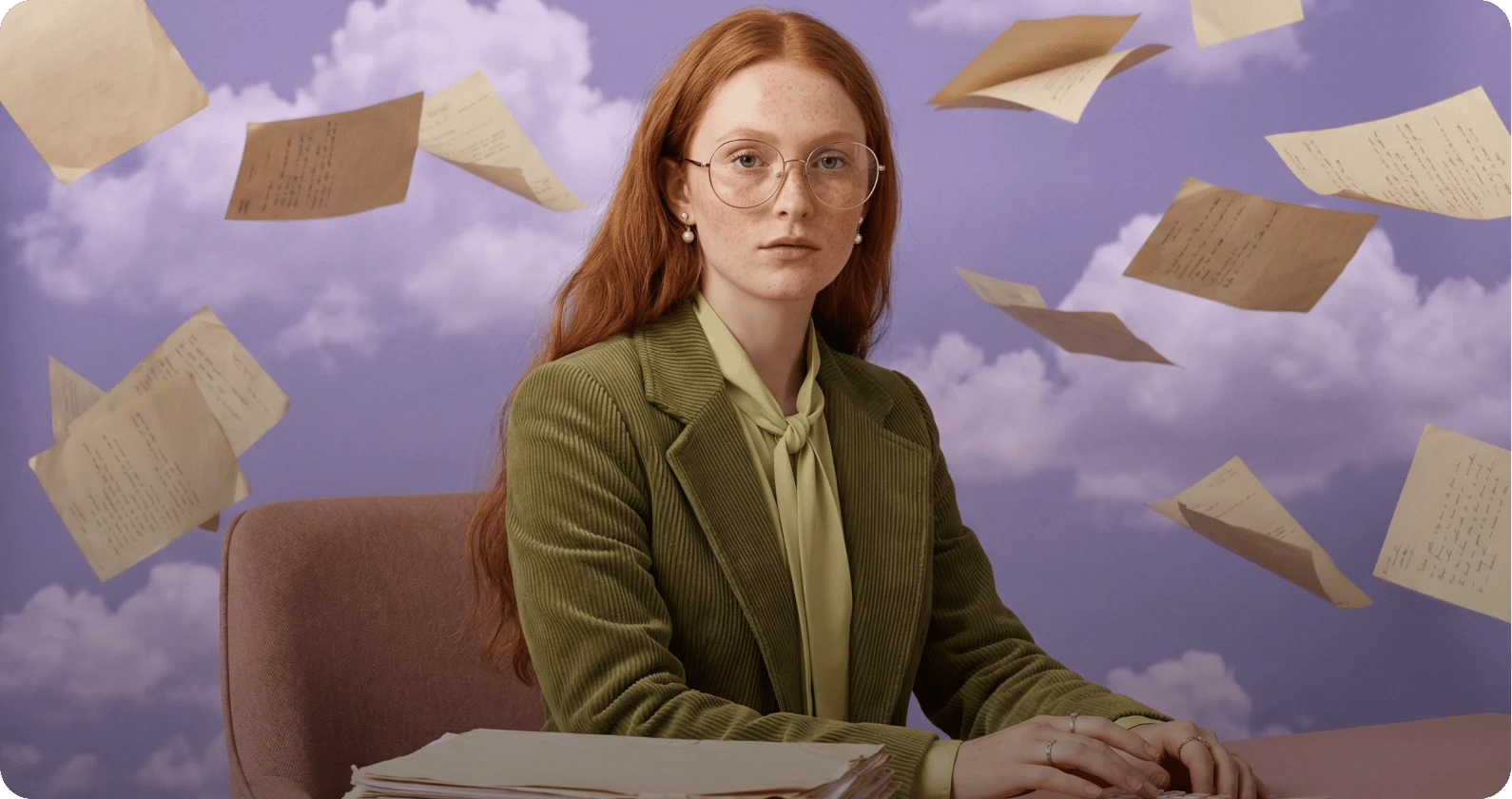
AI Image Editor
Edit and enhance images instantly with AI powered tools. Remove backgrounds, retouch details, adjust lighting, replace elements, or upscale visuals with precision.
Learn moreTry AI Image Editor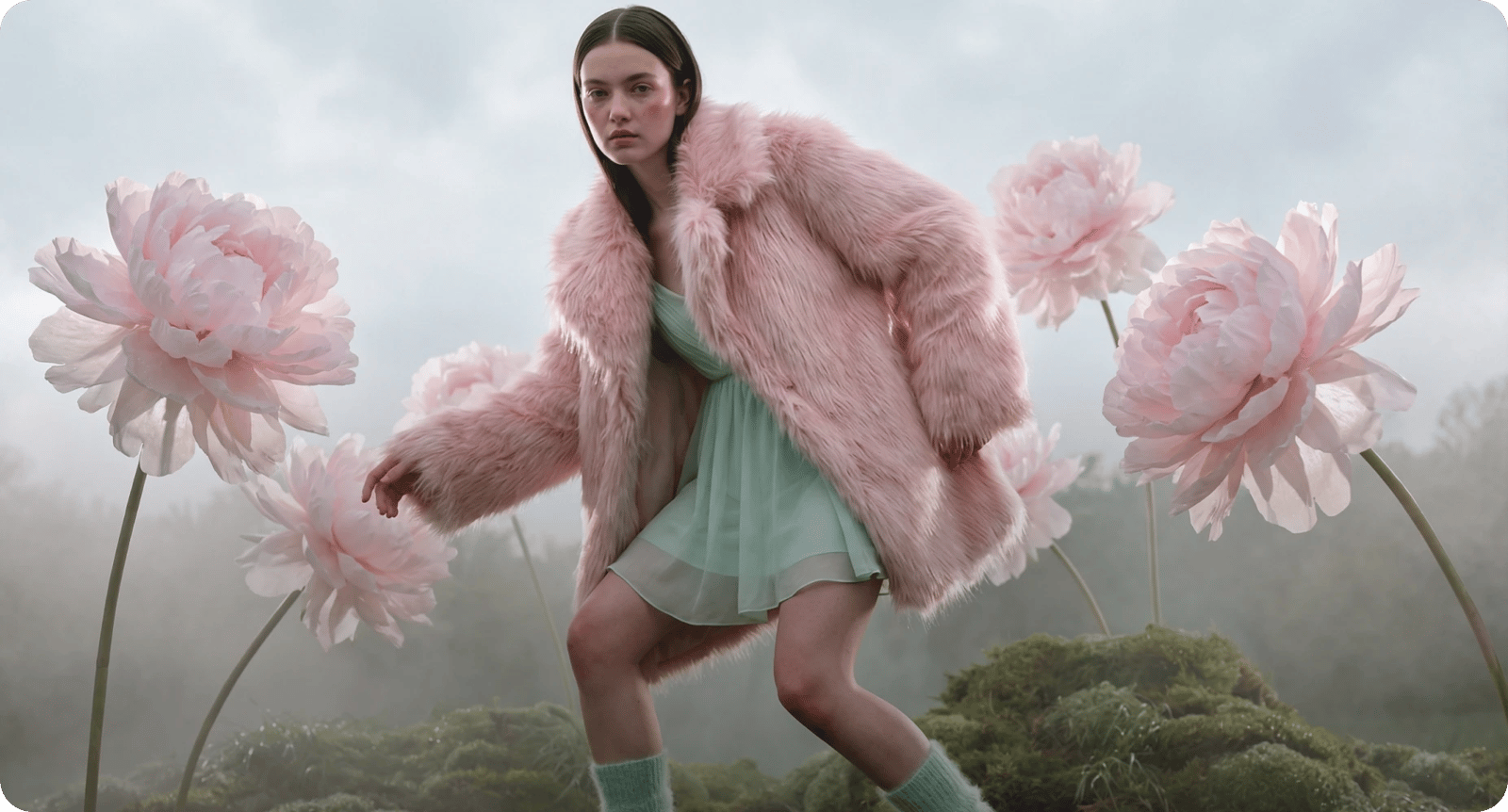
AI Image to Image Generator
Reimagine existing visuals with advanced image to image AI. Upload one or multiple reference images, switch between powerful models, and refine style, details, or composition with full creative control.
Learn moreTry AI Image Generator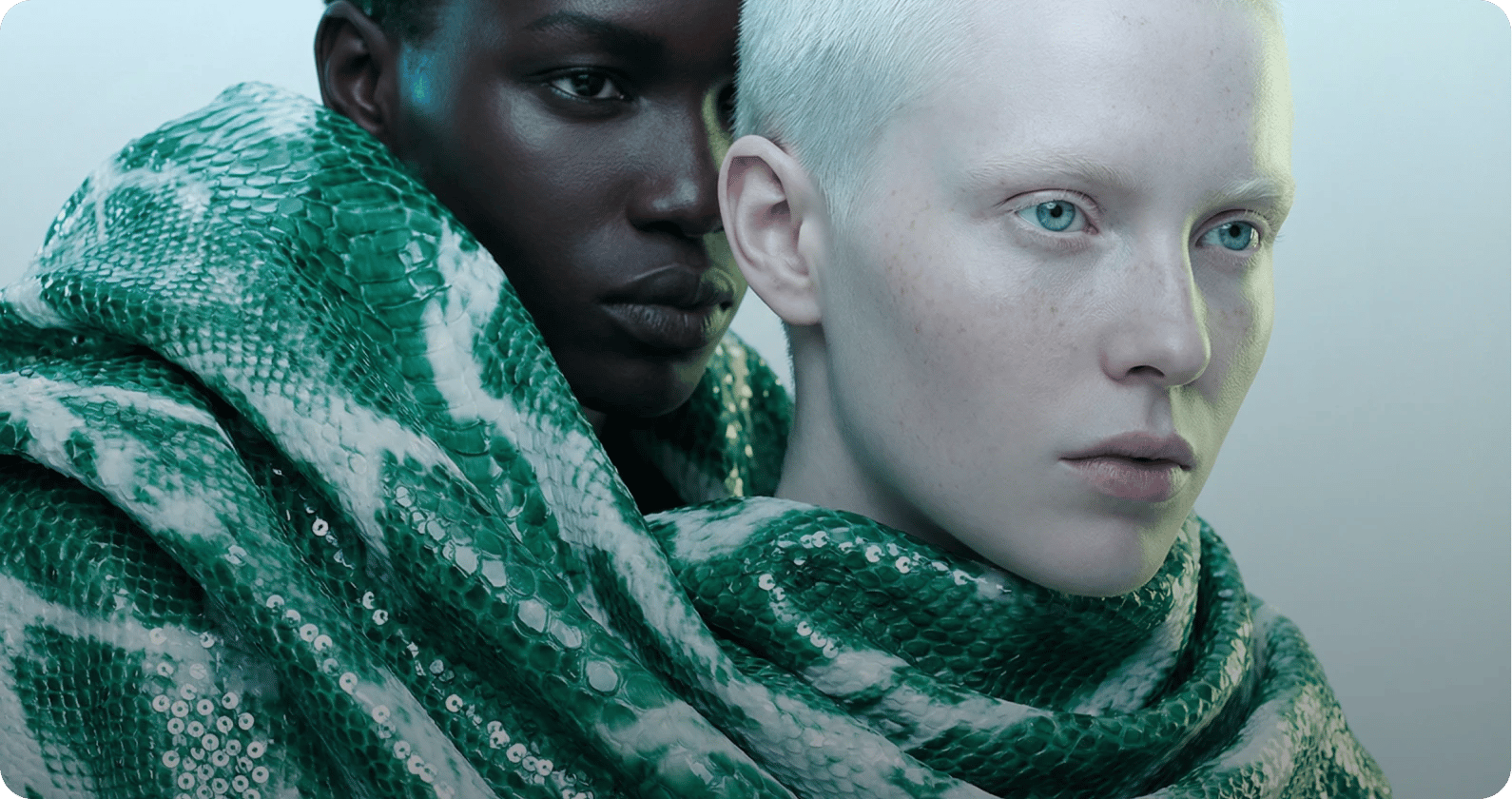
AI Video Generator
Produce cinematic videos using text to video and image to video AI. Turn prompts or reference images into professional grade motion content with industry leading models.
Learn moreTry AI Video Generator