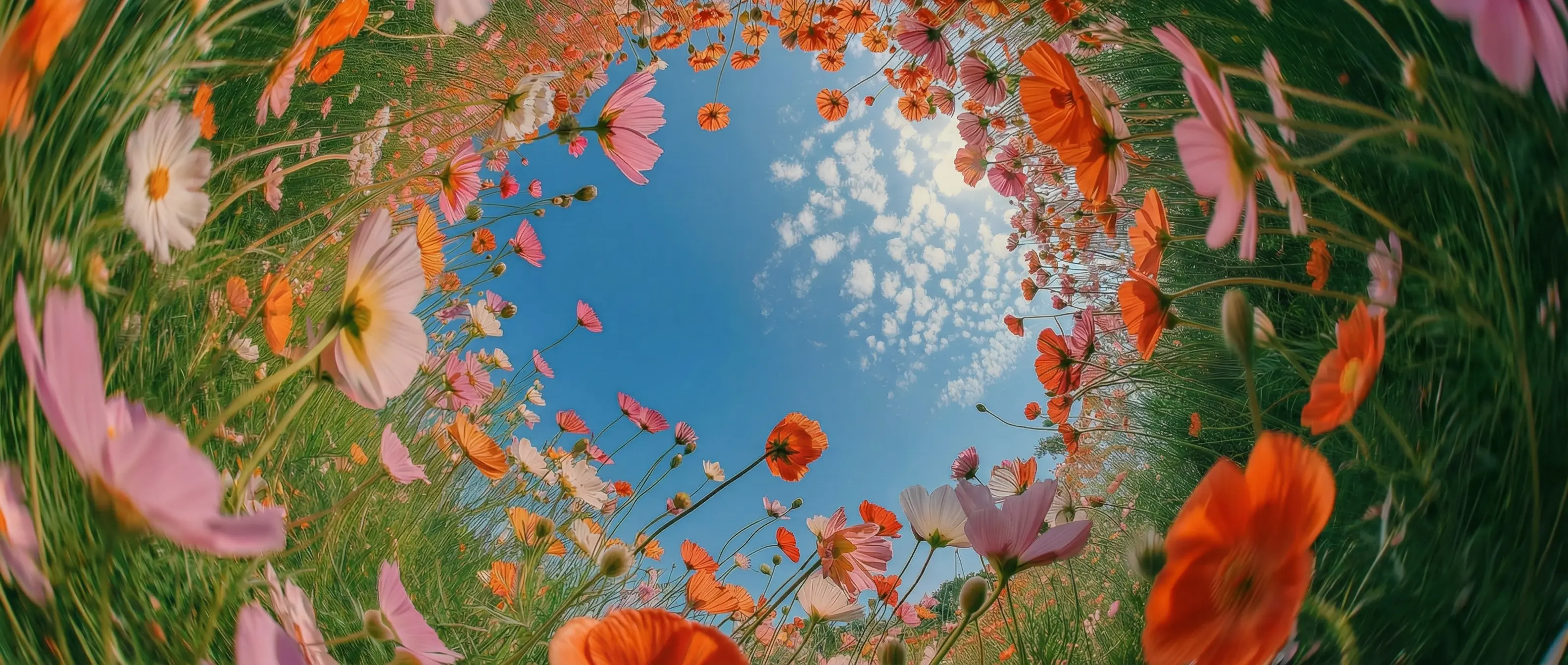
Editing without starting over in DaVinci
Inside DaVinci, edit any part of an existing image using a text instruction. GPT Image 2 understands which element to change and preserves everything around it.
DaVinci brings together image models from different AI providers — OpenAI's GPT Image 2 among them. Generate, edit, and refine images through natural language, with native editing, sharper prompt adherence, and enhanced text rendering.
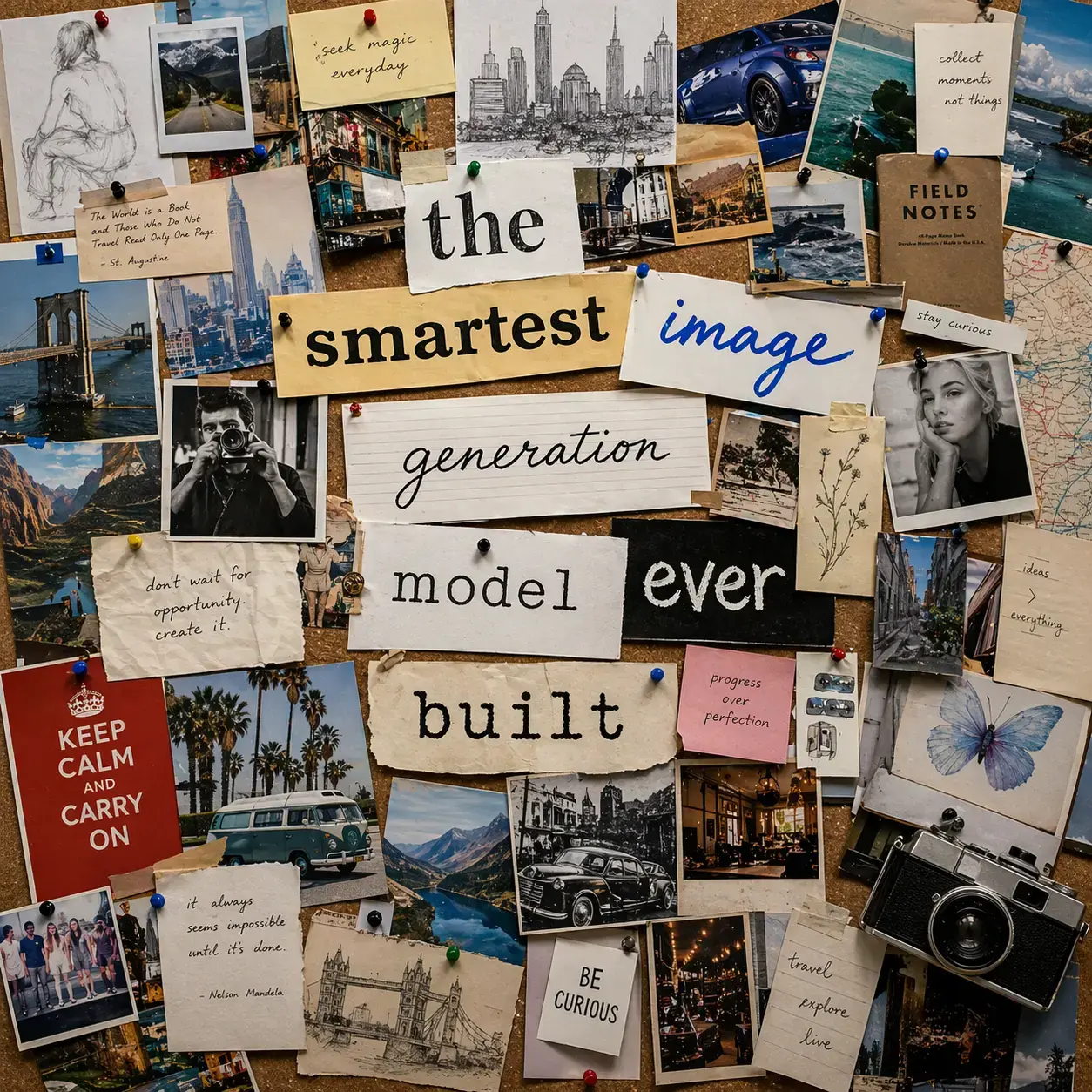
Inside DaVinci, edit any part of an existing image using a text instruction. GPT Image 2 understands which element to change and preserves everything around it.
GPT Image 2 interprets multi-requirement prompts with higher accuracy, producing first-generation outputs in DaVinci that are closer to the intended result.
In DaVinci, typography, signs, labels, and branded copy render legibly and integrate naturally into the image; handling the text-on-image formats that most models produce inconsistently.
From photorealistic product photography to illustrated and conceptual work, GPT Image 2 covers the full spectrum of professional visual styles from a single model in DaVinci.
GPT Image 2 is available directly inside DaVinci AI's image generator for a seamless creation experience.
GPT Image 2 in DaVinci is built for creators, marketers, and designers who need prompt-accurate visuals with native editing and reliable text rendering.
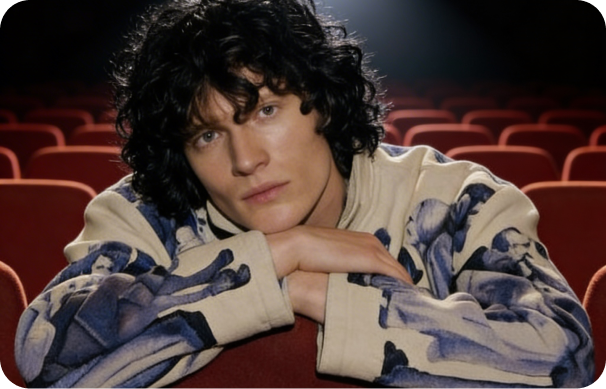
Generate thumbnails, social graphics, and branded content in DaVinci with accurate text rendering and consistent visual quality.
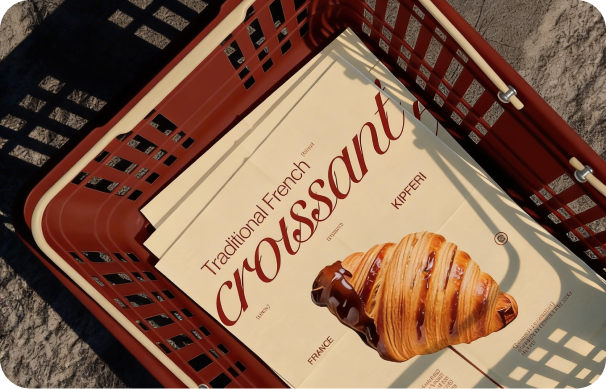
Produce campaign visuals, product mockups, and promotional assets in DaVinci with the prompt precision and editing capability that campaign workflows require.
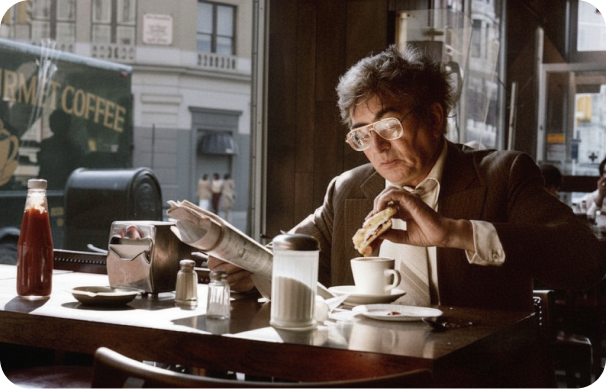
Use GPT Image 2's editing capability in DaVinci to refine generated visuals with targeted natural language instructions; changing specific elements without regenerating from scratch.
Generate thumbnails, social graphics, and branded content in DaVinci with accurate text rendering and consistent visual quality.
Produce campaign visuals, product mockups, and promotional assets in DaVinci with the prompt precision and editing capability that campaign workflows require.
Use GPT Image 2's editing capability in DaVinci to refine generated visuals with targeted natural language instructions; changing specific elements without regenerating from scratch.
Write a prompt and GPT Image 2 produces a high-fidelity, prompt-accurate image. Edit any element with a follow-up instruction. OpenAI's latest image model, available inside DaVinci AI.
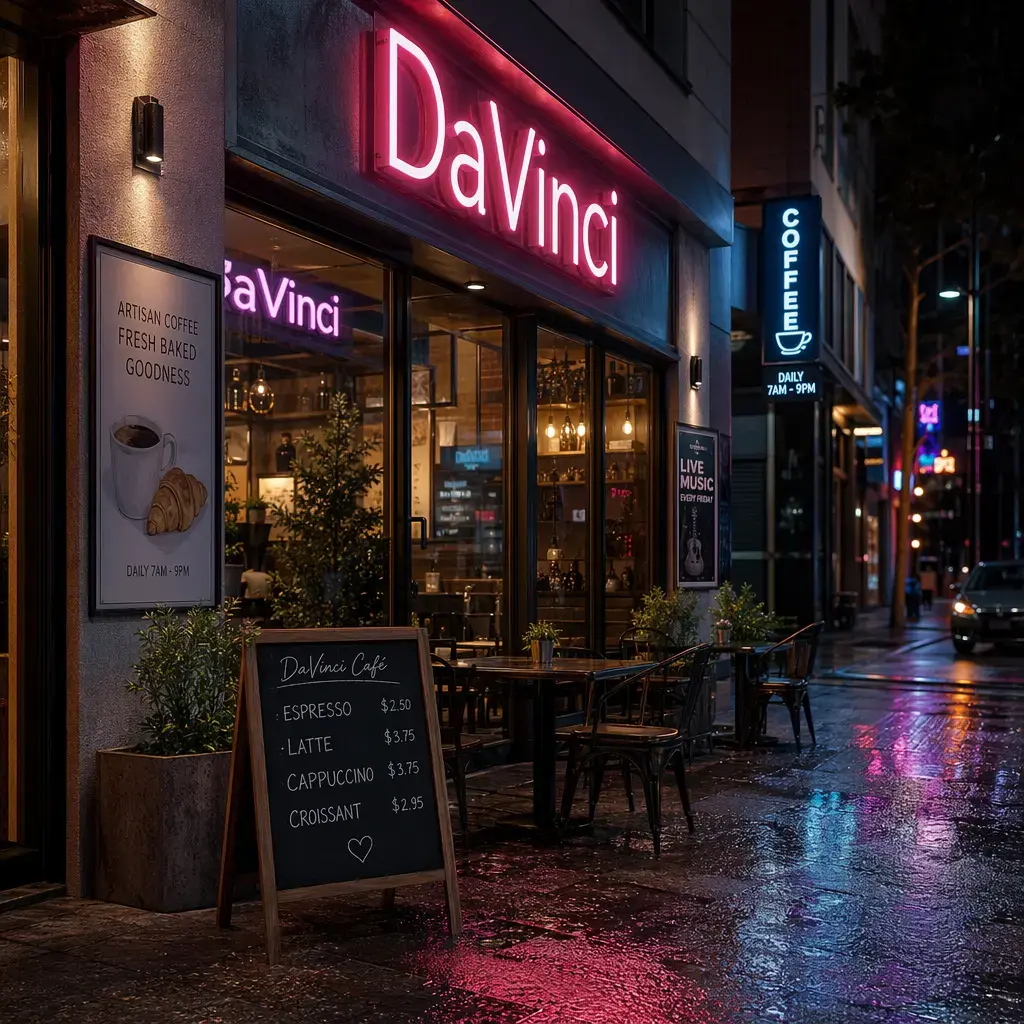
Here's how GPT Image 2 in DaVinci helps you save hours of editing time.
Generate images in seconds with ultra-fast performance, making GPT Image 2 in DaVinci ideal for rapid ideation, quick iterations, and a faster creative workflow.
Replace items in your image, like clothing, accessories, or small details, using simple prompts in DaVinci. The model updates the visual while keeping the subject's identity and structure intact.
Keep your visual style consistent with every edit in DaVinci. GPT Image 2 only changes what you ask for, preventing unexpected shifts as you refine or explore new creative directions.
Update the look and mood of your scene in DaVinci without altering your subject. Change the setting, adjust the environment, or shift the tone while keeping core details consistent.
Generate images in seconds with ultra-fast performance, making GPT Image 2 in DaVinci ideal for rapid ideation, quick iterations, and a faster creative workflow.
Replace items in your image, like clothing, accessories, or small details, using simple prompts in DaVinci. The model updates the visual while keeping the subject's identity and structure intact.
Keep your visual style consistent with every edit in DaVinci. GPT Image 2 only changes what you ask for, preventing unexpected shifts as you refine or explore new creative directions.
Update the look and mood of your scene in DaVinci without altering your subject. Change the setting, adjust the environment, or shift the tone while keeping core details consistent.