How to Use Veo 3.1: Settings, Frames, and Prompts That Work

Here is how to use Veo 3.1: choose an input (text only, a start frame, or a first and last frame), set the length, aspect ratio, resolution, and sound, then write a prompt that names the shot, the subject, the action, the setting, and the style. In DaVinci, Veo 3.1 comes in two versions: Veo 3.1 for final clips and reference images, and Veo 3.1 Fast for cheaper drafts. This guide covers each setting, when to use frames, a prompt structure that follows Google's own advice, and a real test where we turned a product photo into a short clip.
Veo 3.1 Settings at a Glance
Both versions share the same lengths and aspect ratios. They differ in resolution, sound pricing, and reference images. These are the options DaVinci listed on November 16, 2026:
Google's Veo 3.1 model page says every clip renders at 24 frames per second, and videos made with reference images on Veo 3.1 are always 8 seconds long.
Choose an Input: Text, Start Frame, or Two Frames
The input decides how much control you have over what appears on screen:
Text only: Veo creates the whole scene from your words. It works well for ideas and moods, but not when a product or face has to match a real one.
Start frame: Veo starts the clip from your image and animates it. Use this when the first frame must be exact, such as a product with a label. DaVinci also has an image-to-video generator for this kind of job.
First and last frame: Veo creates the motion between two images. This works well for reveals, before-and-after shots, and transitions.
Reference images (Veo 3.1 only): add up to three images of a character, object, or style. Veo keeps them consistent across the clip, but the clip does not start on any of them.
How to Use Veo 3.1 Step by Step
- Pick the version. Draft with Veo 3.1 Fast, and switch to Veo 3.1 when you need 4K or reference images.
- Set the aspect ratio first: 16:9 for YouTube and websites, 9:16 for Reels, Shorts, and TikTok. If you change it later, you have to generate the clip again.
- Choose a length that fits the action. Four seconds is enough for one movement; eight seconds can hold two short actions.
- Decide on sound before you generate. Sound raises the price, so turn it off if you will add music or a voiceover later.
- Add your frames or reference images, then write the prompt.
- Check the credit cost shown before you generate, review the clip, and change one thing at a time when you retry.
Write the Prompt in Five Parts
Google's Veo 3.1 prompting guide suggests building each prompt from five parts. In our own words:
Camera: the shot size, angle, and movement, such as "slow dolly-in at eye level"
Subject: who or what is on screen, with the details that must stay the same
Action: one clear thing that happens
Context: where it happens and the light
Style and mood: the look, such as "calm product film, natural colors"
The same guide also recommends three habits: put spoken lines in quotes, describe sound effects separately when sound is on, and describe what you want to see rather than what you don't. For clips with two actions, it uses timestamps such as [00:00-00:02] to split them.
Our Test: Animating a Product Photo
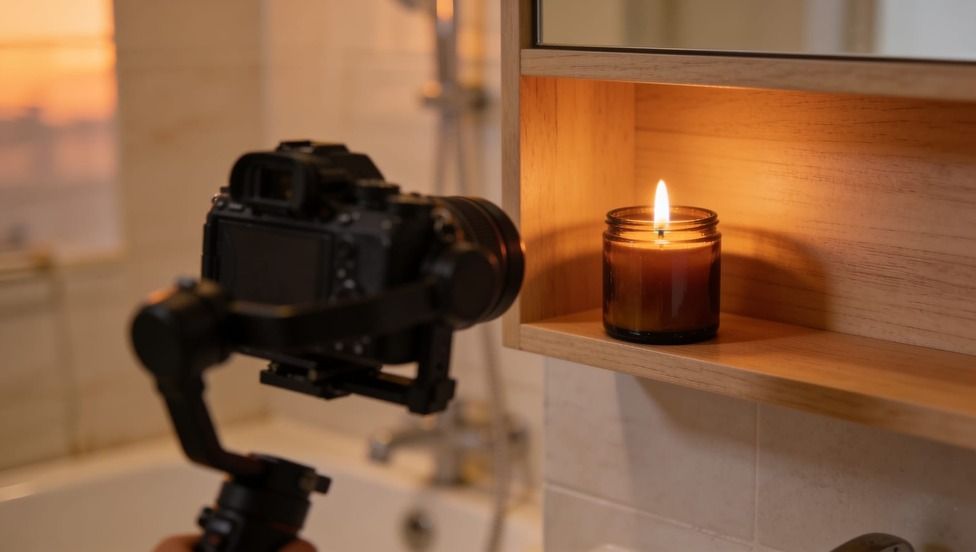
On November 16, 2026, we gave Veo 3.1 Fast a product photo of a candle on a bathroom shelf as the start frame and asked for a 4-second, 16:9, 720p clip without sound. DaVinci quoted 100 credits before we ran it.
What worked: the label stayed sharp and spelled correctly in every frame we checked, and the jar, towel, and shelf did not change shape. The flame flickered as asked. What was weaker: the dolly-in was barely visible, and the wisp of smoke only appeared in the last second. For a stronger camera push, we would name the distance ("move from a medium shot to a close-up of the label") or use 6 seconds.
Use Veo 3.1 Fast to animate a product photo
Try Veo 3.1 FastCommon Mistakes and Quick Fixes
Packing too much into a short clip: plan one movement for every 4 seconds.
Asking Veo for on-screen text: video models still blur letters, so add titles later in your editor.
Paying for sound you will replace: if you plan to add music or a voiceover, turn sound off.
Adding reference images to Veo 3.1 Fast: in DaVinci, only Veo 3.1 accepts them.
Changing several things in one retry: change only the camera, the action, or the light each time, so you can tell what made the difference.
To see how Veo compares with other video models, read our Seedance 2.0 vs 2.5 comparison, or open the Veo 3.1 video generator to try your own prompt.
Drafted with AI assistance and reviewed by Yasin Karatekin. Last updated: November 20, 2026.
More from DaVinci Blog