How to Write AI Product Photography Prompts

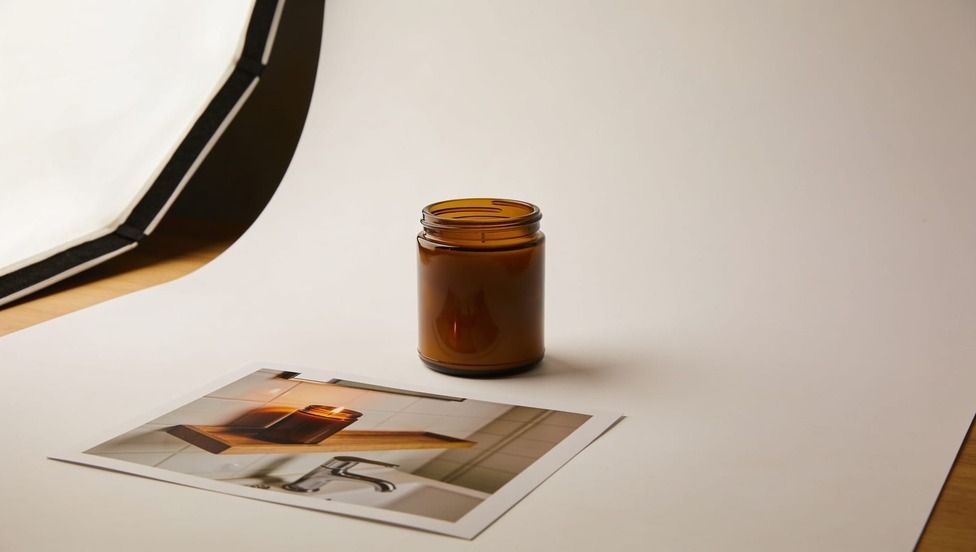
Good AI product photography prompts describe the product the way a spec sheet would, then add the setting, light, camera angle, and framing for one specific use, such as a marketplace main image or a lifestyle shot. Make one clean base image first, check it against the real product, and use it as a reference for every other scene so the item stays the same across the set. Below is one worked example: a candle shop that needs three listing images, the prompts we used, what came back, and what we would fix before any of it went live.
The Scenario: One Candle, Three Listing Images
Our fictional shop sells an amber glass candle jar with a black metal lid and a cream label that reads "FIG & CEDAR." It needs three images:
A main image on a plain white background for the store grid
A lifestyle image that shows the candle lit in a real room
A detail image of the wax, wick, and glass
Two constraints apply to all three. The label must read exactly "FIG & CEDAR," and the jar, lid, and label must look the same in every image, because shoppers compare the photos with what arrives at their door.
A Template for AI Product Photography Prompts
Each prompt we wrote followed the same six parts. Fill in every part, even when the answer is "plain," so the model doesn't guess:
Keep text to the label that is physically on the product. Prices, badges, and slogans belong in your store layout, not in the photo.
Our Test: Three Images From One Description
On November 16, 2026, we ran the template on Seedream 4.5 at 2K and 16:9, at 13 credits per image. We made the main image first, then gave it to the model as a reference for the lifestyle and detail shots.
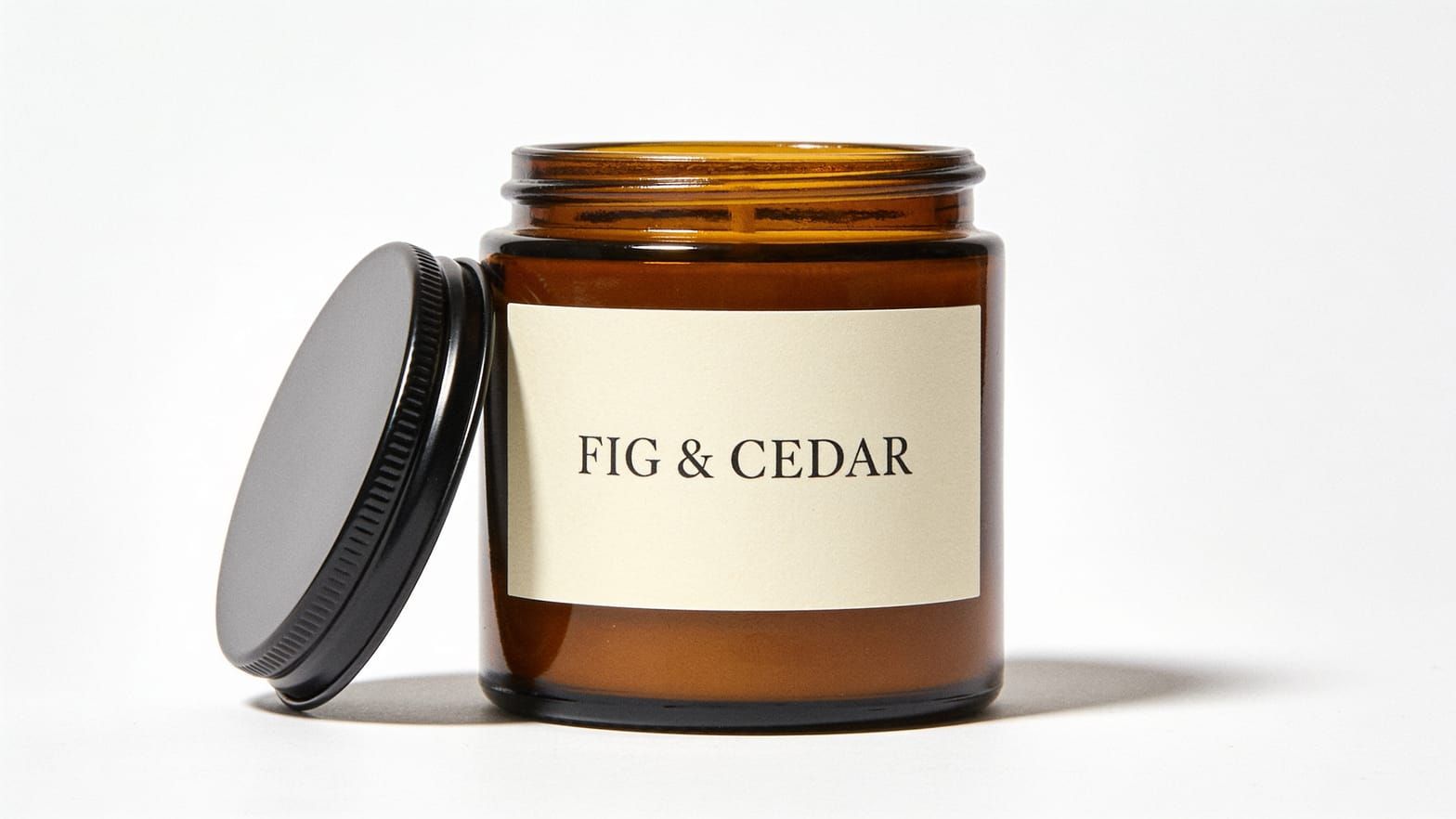
Main image: white background
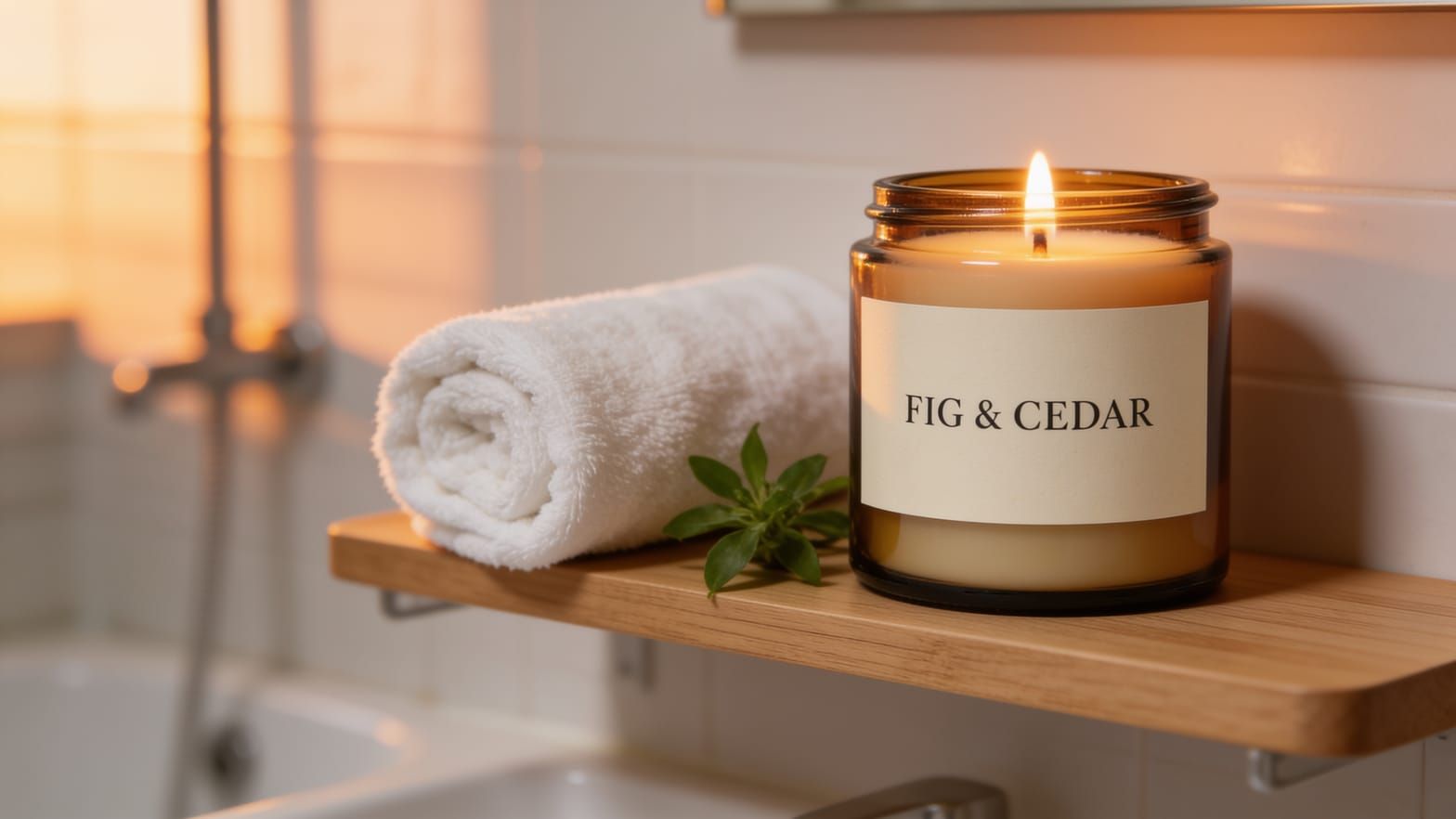
Lifestyle: bathroom shelf
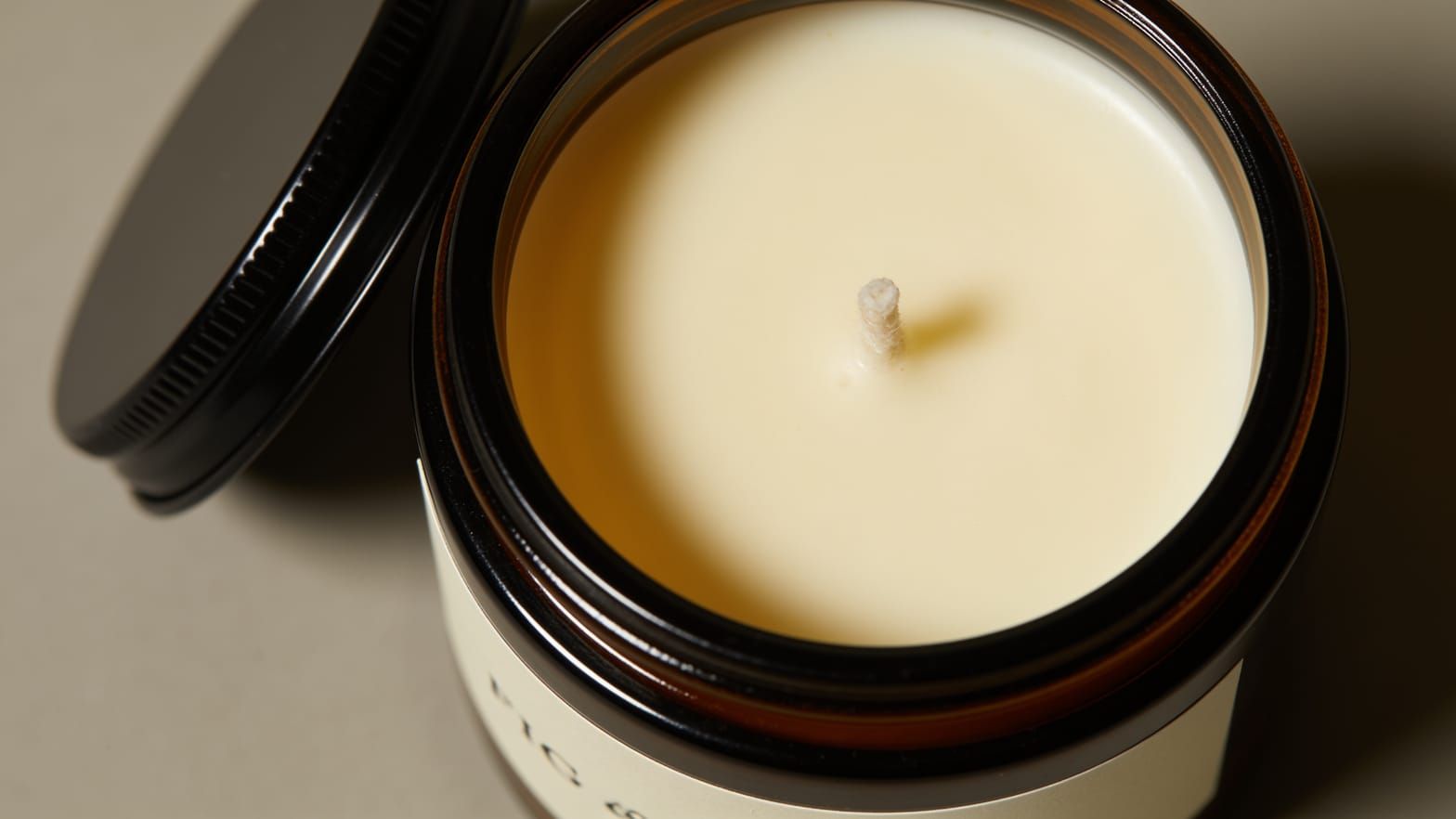
Detail: wax and wick
What worked: the label came out letter-perfect in the main and lifestyle images, and the product matched across the set because the second and third prompts used the first image as a reference.
What missed:
The main image showed an empty jar. Our prompt said "candle jar" but never described the wax, so the model drew the container alone.
The white background measured about 241 to 248 on each color channel at the corners, close to white but not the pure 255 white many marketplaces ask for on a main image.
The detail shot cut the label off at the edge of the frame, and the visible letters were blurred and partly garbled, even though the prompt asked for them to be sharp.
The "small green plant" in the lifestyle prompt became a loose sprig on the shelf. That is harmless here, but it shows that props drift.
Try product photography prompts on Seedream 4.5 in DaVinci
Try Seedream 4.5Check Every Image Before It Goes Live
A product photo is a promise about what the buyer will receive, so the review matters more than the prompt. Before you upload an image, hold it up to the real item and to the store's rules:
- Read the label letter by letter, and compare the shape, color, lid, and size cues with the item you ship.
- Look for things the model added or removed, such as extra parts, a different finish, or missing contents.
- Check the background and framing against your marketplace. Google Merchant Center's image rules, for example, ask for the product to fill 75 to 90 percent of the image and ban added text, watermarks, and promotional overlays.
- Put the set side by side to confirm the product looks identical in every image.
Fix the Common Misses
Most problems in our test came from details the prompt left open. These changes cover the ones we saw:
Missing or wrong contents: describe what is inside, such as "filled with smooth cream wax and a single cotton wick."
Garbled lettering: keep the label fully in the frame and large, or choose an angle that leaves the text out of a close-up.
Off-white background: correct it in an image editor or remove the background after generating, then check the corner values again.
Drifting product details: always pass the approved main image as a reference, and change only the setting in each new prompt.
For more ways to structure a prompt by use, see our AI image prompt examples, or run your own product description in the AI image generator.
Drafted with AI assistance and reviewed by Kerem Tüfekçi. Last updated: November 16, 2026.
More from DaVinci Blog