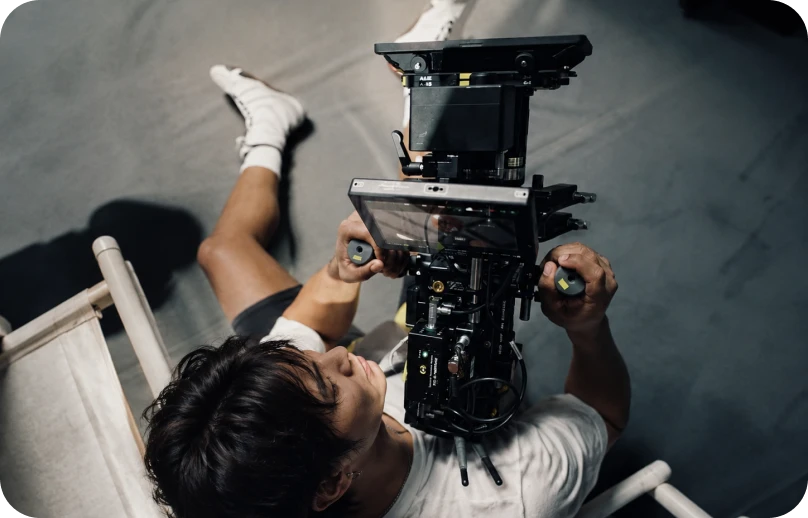
Video creators and filmmakers
Generate natural voiceovers for YouTube videos, ads, films, explainers, and social content.
Turn written text into natural-sounding voiceovers in seconds. Type your script, choose a voice, and generate clean narration for podcasts, social videos, ads, trailers, and more.
Generate studio-quality speech with natural voices, fast results, flexible control, and production-ready audio for every type of project.
Start Creating
Generate studio-quality voice with expressive emotion, precise prompt control, and natural delivery. Create anything from short voice clips to polished narration with production-ready results.
Create polished voiceovers in seconds. No microphones, studios, or recording sessions needed.
Try Text to Speech
Select Custom Voice and upload a short audio sample.
Add a name and description to keep your voices organized.
Your custom voice will be saved in your DaVinci account and ready to use across your projects.
Built for creators, businesses, and teams producing professional voice content at any scale.
Generate natural voiceovers for YouTube videos, ads, films, explainers, and social content.
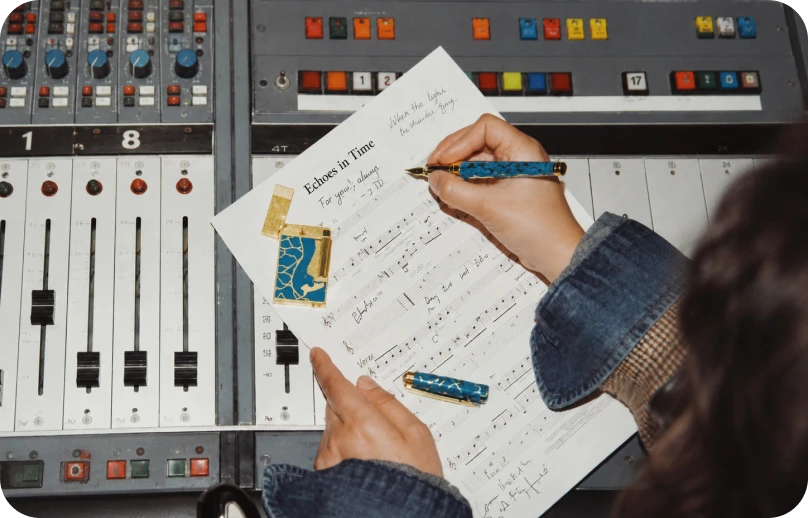
Create expressive narration, character voices, intros, and long-form spoken content.
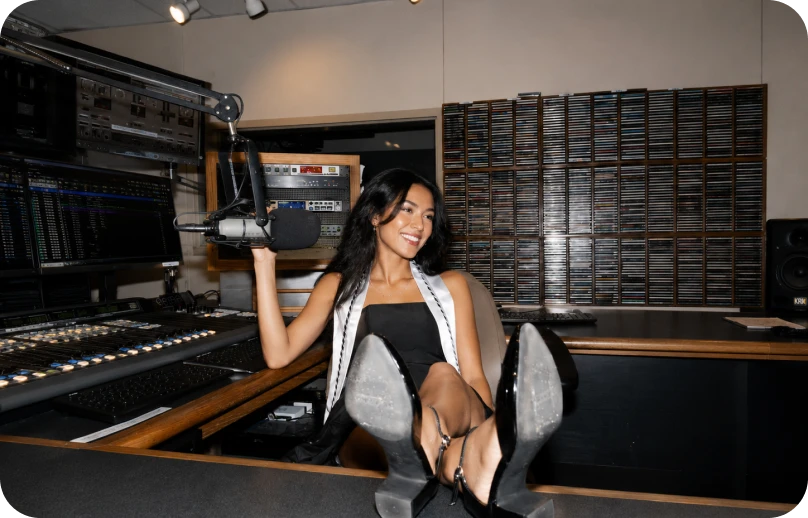
Power apps, customer experiences, audiobooks, e-learning, and product voice interfaces with realistic AI speech.
Generate natural voiceovers for YouTube videos, ads, films, explainers, and social content.
Create expressive narration, character voices, intros, and long-form spoken content.
Power apps, customer experiences, audiobooks, e-learning, and product voice interfaces with realistic AI speech.
One workspace for intuitive image, video, and voiceover generation — so you can take on your biggest creative projects without switching tools.
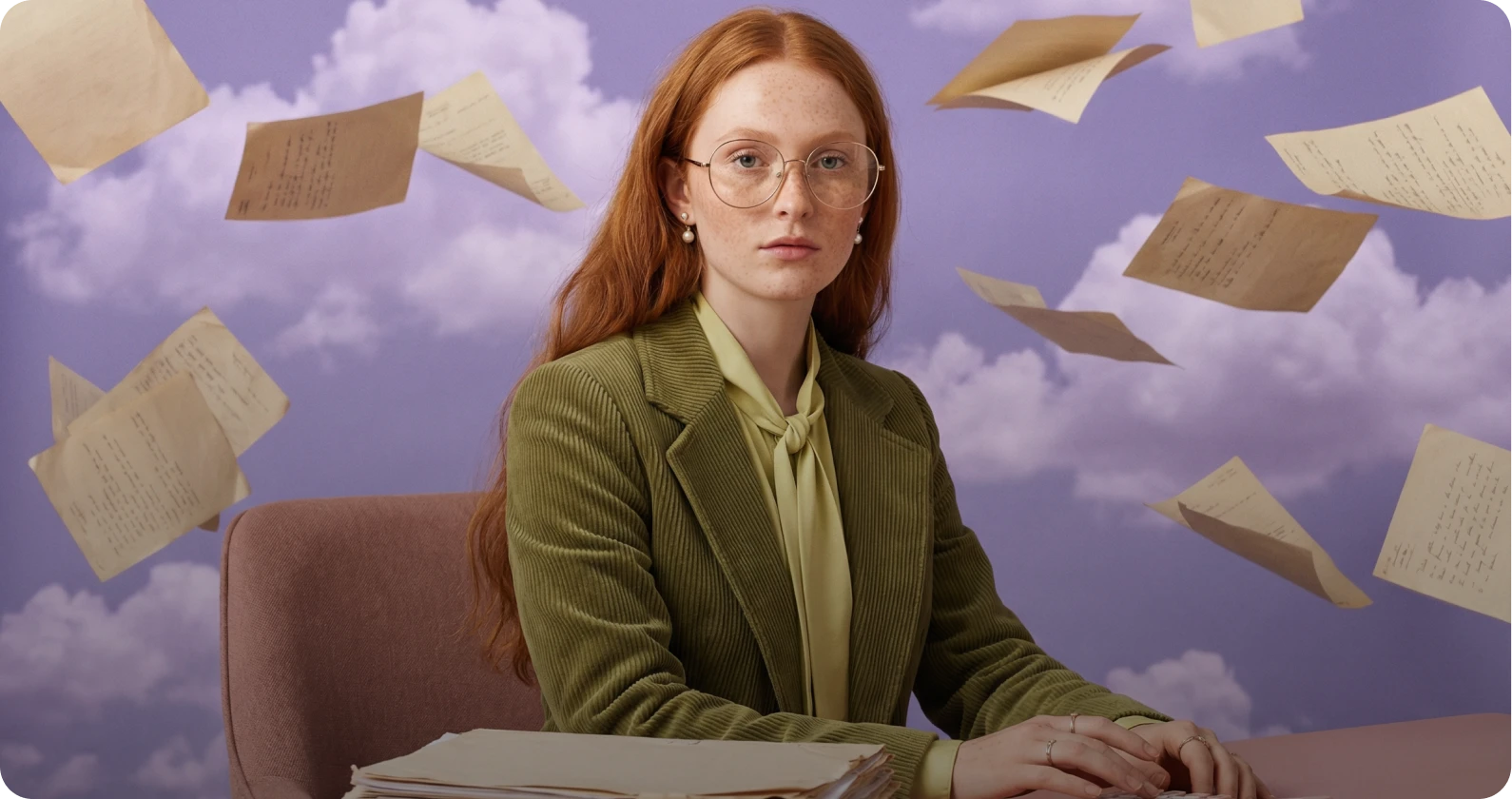
Edit and enhance images instantly with AI powered tools. Remove backgrounds, retouch details, adjust lighting, replace elements, or upscale visuals with precision.
Learn moreTry AI Image Editor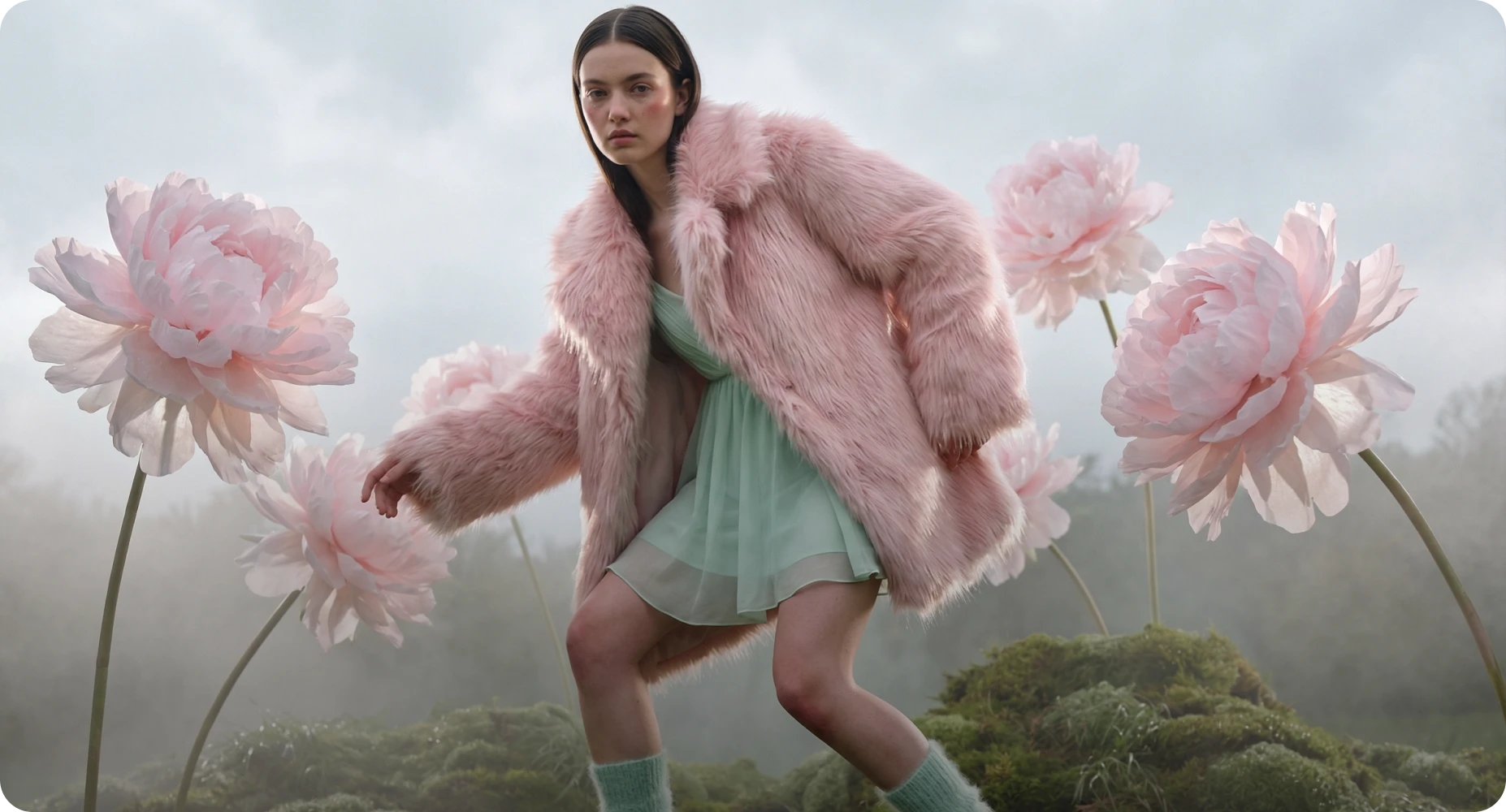
Reimagine existing visuals with advanced image to image AI. Upload one or multiple reference images, switch between powerful models, and refine style, details, or composition with full creative control.
Learn moreTry AI Image Generator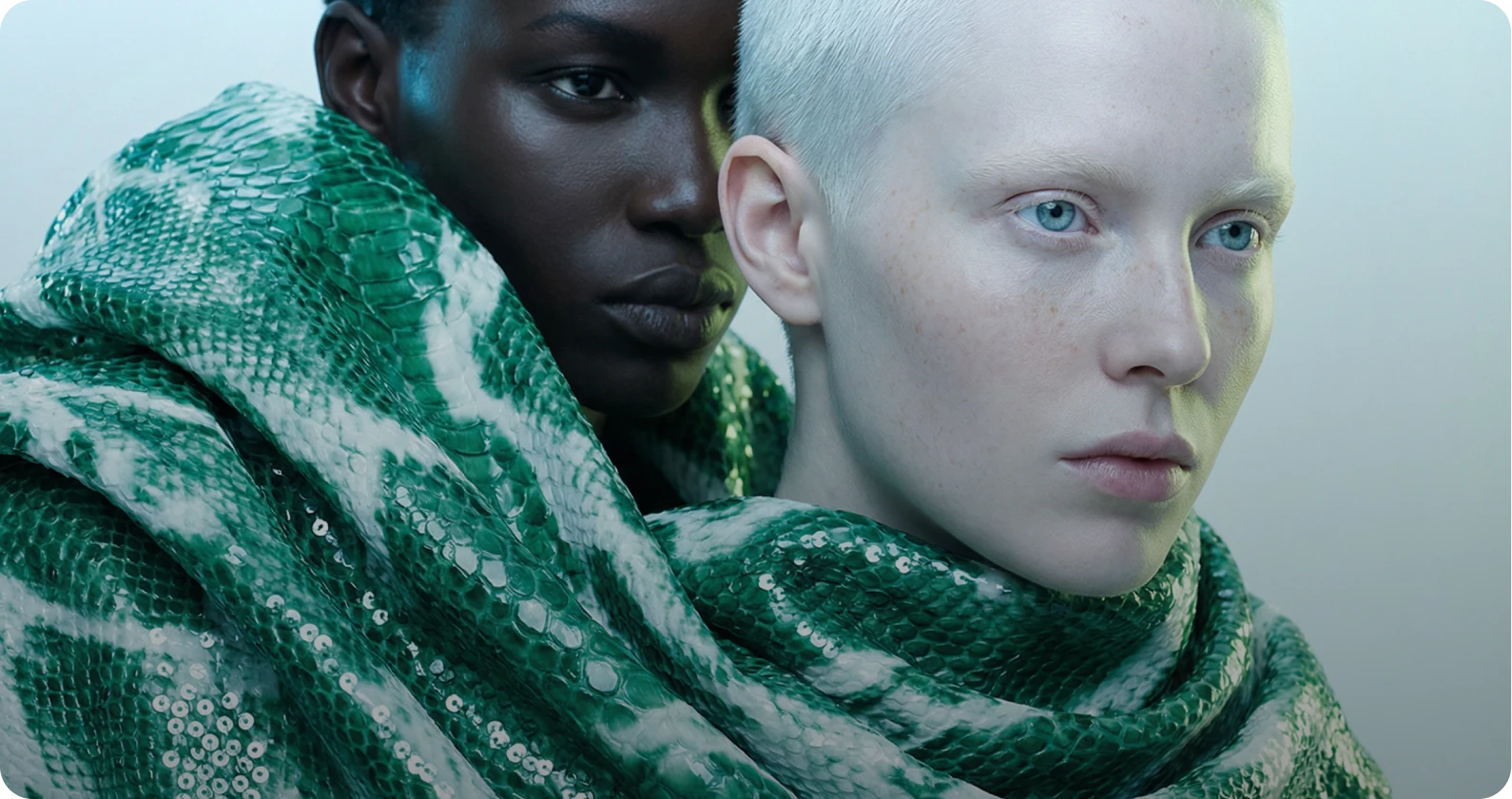
Produce cinematic videos using text to video and image to video AI. Turn prompts or reference images into professional grade motion content with industry leading models.
Learn moreTry AI Video Generator