Advanced multimodal control
Guide AI generation using text prompts together with reference images, video samples, and audio. A structured tagging system lets you define opening frames, camera movement, and music cues with precision.
Seedance 2.0 by ByteDance AI is a multimodal video generator for creating cinematic sequences from text, images, video clips, and audio inputs. Direct complex shots, edit footage, and generate synchronized sound within a single workflow.
Guide AI generation using text prompts together with reference images, video samples, and audio. A structured tagging system lets you define opening frames, camera movement, and music cues with precision.
Create fluid tracking shots, smooth scene transitions, and multi-shot sequences while keeping characters and environments consistent. Maintain the continuity required for professional-grade visuals.
Generate sound effects and background music that automatically match the timing and rhythm of your visuals. Achieve clean, production-ready results without additional audio editing.
Edit and extend existing footage with exact control. Swap characters, insert or remove scenes, and continue generation from the last frame for maximum creative freedom.
Seedance 2.0 by ByteDance AI is fast and intuitive, available directly inside the DaVinci AI Toolkit.
ByteDance Seedance 2.0 is designed for creators who need structured control, cinematic flow, and reliable consistency across video projects.
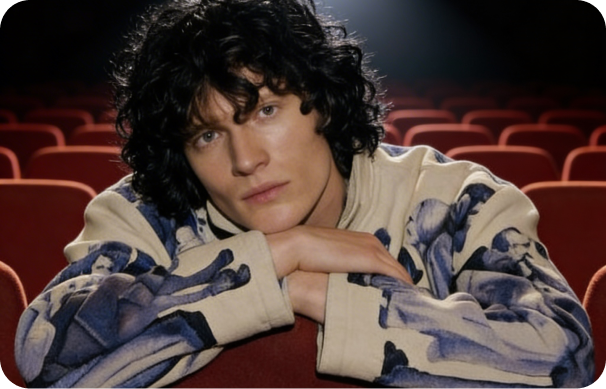
Produce on-brand video content with tight visual consistency and synchronized audio for social platforms, advertising, and product showcases.
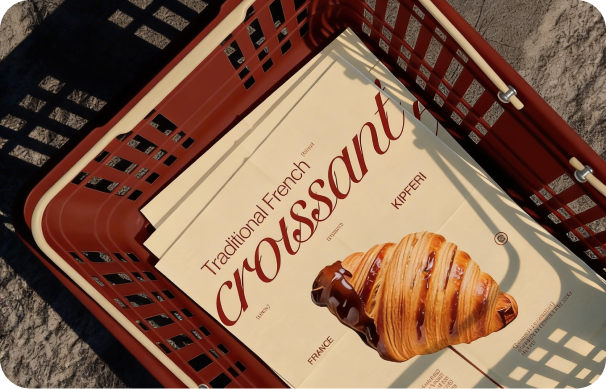
Develop cinematic previsualizations, multi-shot sequences, and concept scenes with consistent characters, camera movement, and sound design.
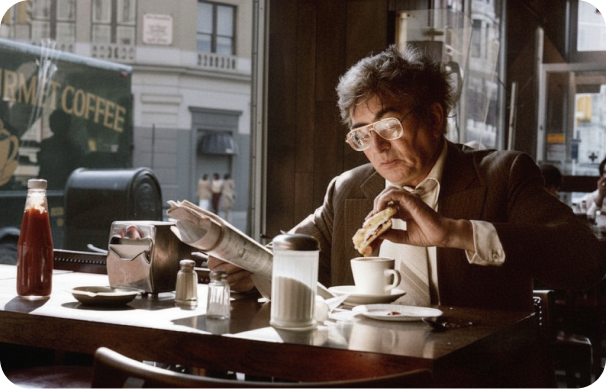
Experiment with complex motion, generate reference clips for storyboards, and explore visual styles before moving into full-scale production.
Produce on-brand video content with tight visual consistency and synchronized audio for social platforms, advertising, and product showcases.
Develop cinematic previsualizations, multi-shot sequences, and concept scenes with consistent characters, camera movement, and sound design.
Experiment with complex motion, generate reference clips for storyboards, and explore visual styles before moving into full-scale production.
Explore the Seedance 2.0 video generator and bring images, video clips, and audio together to create multimodal content aligned with your creative vision.
Explore the core features that give you director-level control over multimodal video creation.
Guide creative direction with structured @Image, @Video, and @Audio references. Assign key frames, camera movement, or music cues directly in your prompt for precise orchestration and style control.
Create across text-to-video, image-to-video, video-to-video, and audio-to-video workflows. Build scenes from scratch, refine existing footage, or generate full sequences with flexibility.
Extend scenes naturally while preserving characters, environments, and motion flow. Generate longer sequences with consistent pacing and cinematic continuity.
Automatically generate sound effects and music that align with on-screen action and timing, keeping audio and visuals in sync within a single generation.
Guide creative direction with structured @Image, @Video, and @Audio references. Assign key frames, camera movement, or music cues directly in your prompt for precise orchestration and style control.
Create across text-to-video, image-to-video, video-to-video, and audio-to-video workflows. Build scenes from scratch, refine existing footage, or generate full sequences with flexibility.
Extend scenes naturally while preserving characters, environments, and motion flow. Generate longer sequences with consistent pacing and cinematic continuity.
Automatically generate sound effects and music that align with on-screen action and timing, keeping audio and visuals in sync within a single generation.