Built-in audio
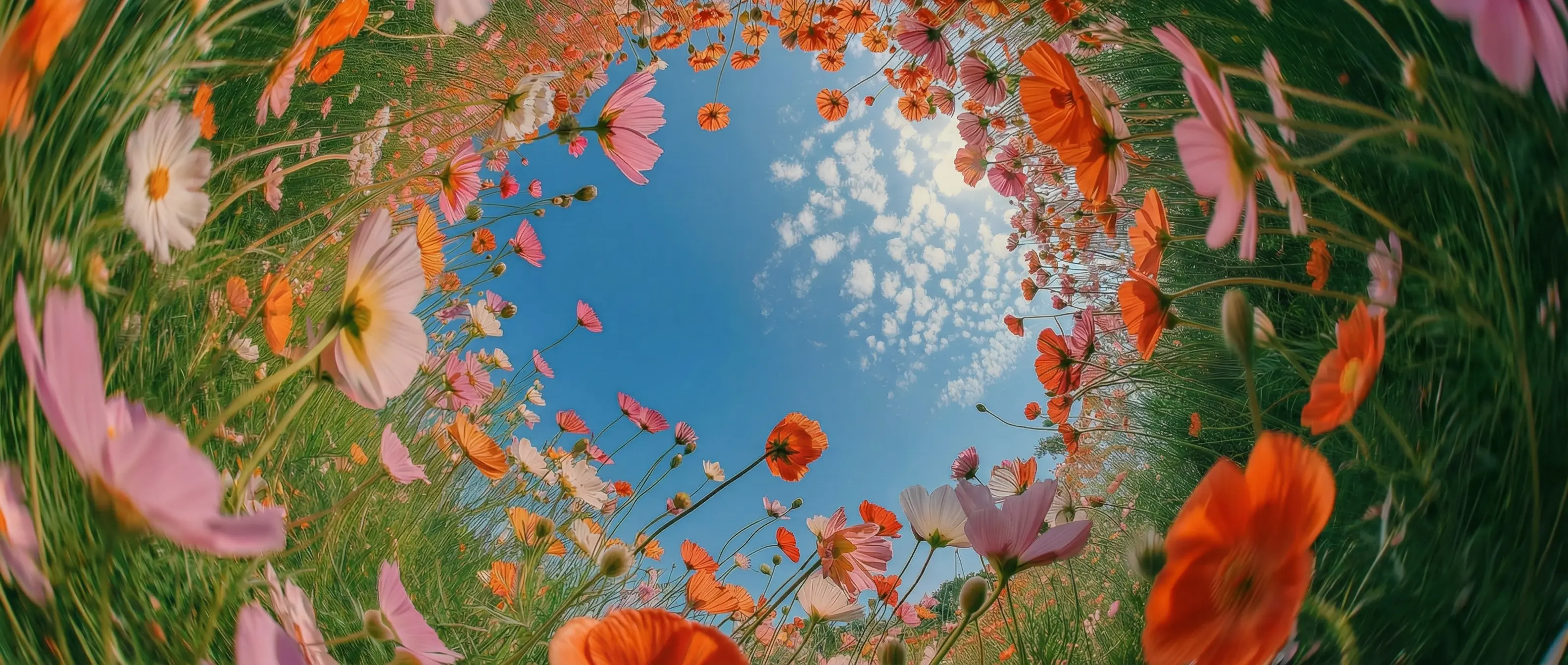
Wan 2.6 includes native audio with synced sound effects, ambient layers, and character dialogue, aligned seamlessly with your visuals.
Wan 2.6 delivers high-quality text-to-video and image-to-video generation with smooth motion, cinematic visuals, and precise prompt control, enabling faster workflows and production-ready results.
Wan 2.6 includes native audio with synced sound effects, ambient layers, and character dialogue, aligned seamlessly with your visuals.
Guide pacing, camera behavior, and emotional tone with precision. Wan 2.6 closely follows complex prompts to deliver clean, professional-looking videos.
Lighting, motion, and depth behave naturally. Scenes feel smoother and more dynamic, with refined transitions and realistic physics in every shot.
Characters show more believable facial expressions and emotional nuance, reacting naturally to context for more grounded, story-driven videos.
Create cinema-quality videos with Wan 2.6, available directly inside the DaVinci AI Toolkit.
Wan 2.6 is built for filmmakers, marketers, and creators who want fast, cinematic storytelling without heavy post-production.
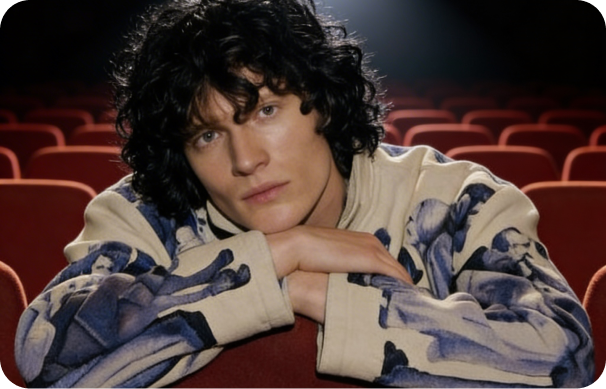
Create cinematic ads, product videos, and social content with smooth motion, native audio, and consistent visual quality.
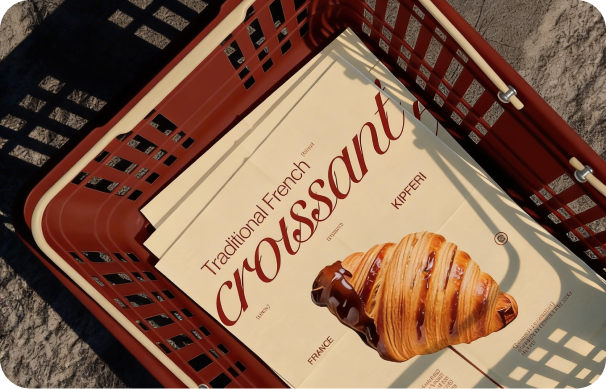
Use Wan 2.6 for previsualization, storyboards, trailers, and narrative scenes with realistic motion, synced audio, and expressive characters.
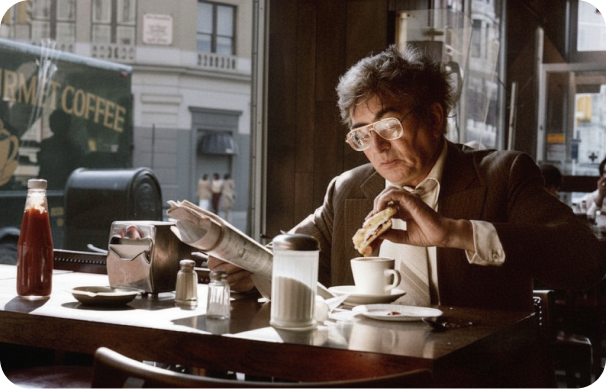
Produce high-impact videos for TikTok, Instagram, and more, with built-in sound and cinematic visuals ready to publish.
Create cinematic ads, product videos, and social content with smooth motion, native audio, and consistent visual quality.
Use Wan 2.6 for previsualization, storyboards, trailers, and narrative scenes with realistic motion, synced audio, and expressive characters.
Produce high-impact videos for TikTok, Instagram, and more, with built-in sound and cinematic visuals ready to publish.
Describe your idea in a text prompt and generate a cinematic video in seconds.
Wan 2.6 combines fast generation, advanced motion control, and native audio to support flexible, production-ready video creation at scale.
Generate synced dialogue, ambient layers, and sound effects directly with your visuals to add depth and realism to every scene.
Create smooth, realistic motion with precise camera behavior, enabling professional, cinematic shots from simple text prompts.
Interprets complex direction and emotional cues, producing characters that move and react with believable expression and intent.
Maintains character identity, tone, and motion across shots and scenes, ideal for storytelling, branding, and multi-scene videos.
Generate synced dialogue, ambient layers, and sound effects directly with your visuals to add depth and realism to every scene.
Create smooth, realistic motion with precise camera behavior, enabling professional, cinematic shots from simple text prompts.
Interprets complex direction and emotional cues, producing characters that move and react with believable expression and intent.
Maintains character identity, tone, and motion across shots and scenes, ideal for storytelling, branding, and multi-scene videos.