Turn ideas into video with AI powered text to video
Generate high quality videos instantly from simple text prompts. Create cinematic shots, social media content, and dynamic scenes using advanced text to video AI — no camera, crew, or editing skills required.
Text to video AI models for cinematic video generation
Access industry leading text to video AI models in one platform and transform prompts into cinematic, production ready videos. Built for speed, scale, and professional grade video production.
Start Creating
Text to Video Models
Sora 2
High-end text-to-video model focused on realism and storytelling, creating detailed scenes with smooth, coherent motion.
More on Sora 2Sora 2 Pro
Enhanced Sora performance with higher visual fidelity, stronger consistency, and refined motion for premium, production-ready video results.
More on Sora 2 ProVeo 3.1
Cinematic text-to-video model designed for realistic detail, fluid motion, and strong scene continuity — ideal for polished, story-driven visuals.
More on Veo 3.1Veo 3.1 Fast
A faster Veo experience built for quick ideation and iteration, delivering solid motion and visual quality with reduced generation time.
More on Veo 3.1 FastSeedance 2.5
Generate continuous 30-second scenes from text, image, video, and audio references, with structured @-tag direction and auto-synced sound in a single pass.
More on Seedance 2.5Seedance 2.0
Multimodal Seedance model that builds cinematic sequences from text, image, video, and audio inputs, with synced sound and multi-shot continuity.
More on Seedance 2.0Kling O3
Kling's flagship model with true-to-life physics, multi-shot cinematic continuity, and synced audio for production-ready scenes.
More on Kling O3Kling 2.6 Pro
Cinematic Kling model with native audio, precise prompt control, and expressive character performance for polished, story-driven video.
More on Kling 2.6 ProGrok Imagine Video
Versatile text-to-video model delivering dynamic visuals, strong prompt understanding, and smooth motion for fast-paced creative workflows.
More on Grok Imagine VideoWan 2.6
High-quality text-to-video and image-to-video model with native audio, cinematic realism, and precise prompt control.
More on Wan 2.6Seedance 1.5 Pro
Balanced Seedance model with sharp detail and stable motion, a dependable choice for everyday text-to-video and image-to-video creation.
What is text to video AI?
DaVinci’s text to video AI is a generative tool that turns text prompts into high-quality video clips. Create the videos you imagine by simply describing how you want them to look.
Try Text to VideoHow to use text to video in DaVinci
Start Creating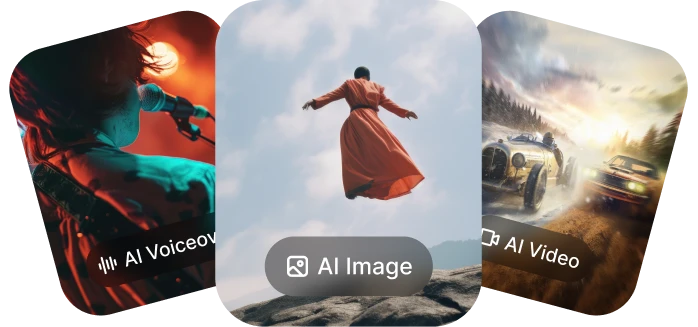
Go to the DaVinci AI Toolkit
Open the AI video tool, then select text-to-video.
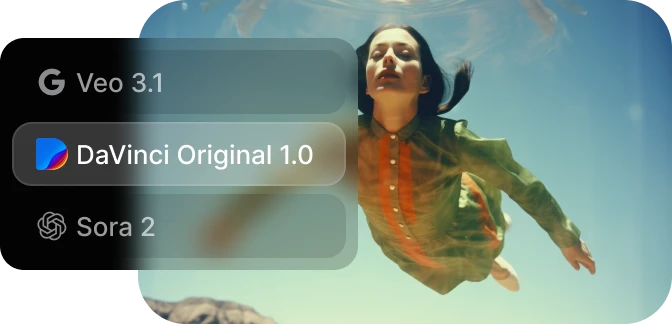
Write your prompt
Describe the video you want, including lighting, camera movement, and style.
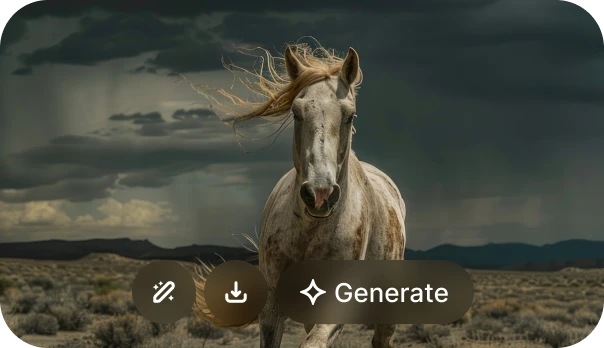
Generate and download
Generate your video, preview the result, refine if needed, and download.