Advanced image to image AI tools for visual creation
Transform any image using powerful image to image AI tools. Edit, combine, and restyle visuals in seconds to create storyboards, product shots, ad creatives, social media content, and more — with speed, precision, and consistent quality.
Image to image AI models for precise visual editing
Access advanced image to image AI models built for controlled edits, style transformations, and structured visual changes. Remix, enhance, and transform images with full creative control and consistent, high quality results.
Start Creating
Image to Image Models
Kling 3.0 Image
Kling 3.0 Image enhances visual storytelling with multi-image sequences, 2K/4K resolution, and consistent cinematic style. Built for concept artists, filmmakers, and designers who need production-ready, high-quality visuals.
Grok Imagine
Grok Imagine delivers fast, creative image generation with a focus on artistic flexibility and diverse styles.
More on Grok ImagineNano Banana Pro
Nano Banana Pro offers high-quality image generation with exceptional speed and photorealistic output.
More on Nano Banana ProFlux.2 Pro Edit
Flux.2 Pro Edit provides advanced image editing capabilities with AI-powered precision and creative control.
Nano Banana
Nano Banana offers fast and efficient image generation with a balance of quality and speed.
More on Nano BananaSeedream 4.5
Seedream 4.5 excels at generating dreamy, artistic visuals with unique aesthetic qualities.
More on Seedream 4.5Flux.2 Dev
Flux.2 Dev is a versatile development model for rapid prototyping and creative experimentation.
Flux.2 Pro
Flux.2 Pro delivers professional-grade image generation with fine-tuned control and high fidelity.
GPT Image 1.5
GPT Image 1.5 combines language understanding with image generation for highly accurate prompt interpretation.
GPT Image 1 Mini
GPT Image 1 Mini provides efficient image generation with strong prompt adherence in a compact model.
Ideogram V3
Ideogram V3 specializes in typography-aware image generation with excellent text rendering capabilities.
Ideogram V3 Character
Ideogram V3 Character focuses on consistent character generation with detailed personality and style control.
What is image to image AI?
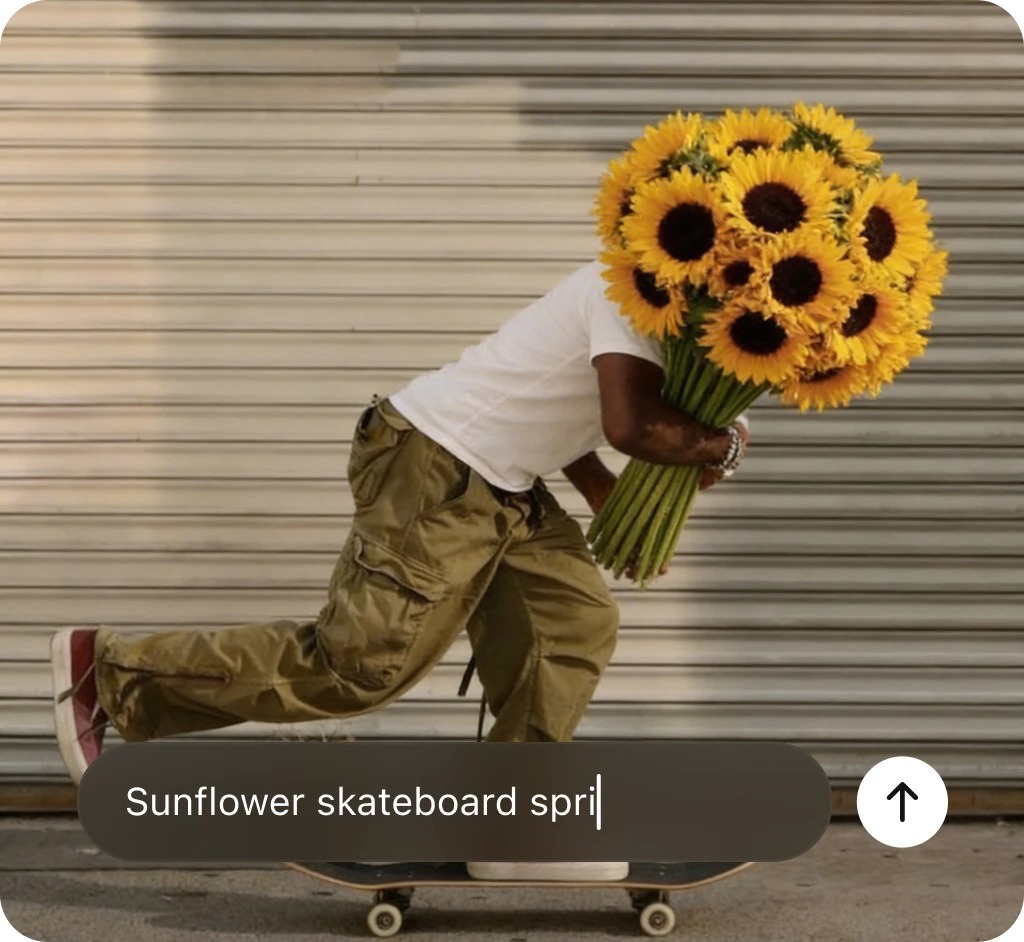
Image to image AI lets you upload visuals and transform them using text prompts. Add or remove elements, refine details, adjust style, or reimagine images by guiding the AI with clear instructions. Upload reference images to achieve precise, controlled results.
Try Image to ImageHow to generate picture-perfect AI images
DaVinci AI tools are intuitive and built to help you create effortlessly. Follow these simple steps to start generating visuals with the DaVinci AI image generator.
Start Creating
Go to the DaVinci AI Toolkit
Open the AI image and video tool, then choose the image generator.
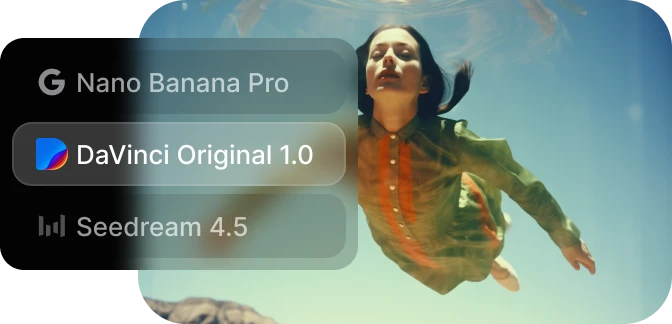
Choose your model and write your prompt
Select the model you want to use and describe the image you want to create.
Generate and refine your results
Generate your AI image in seconds and refine it as needed.