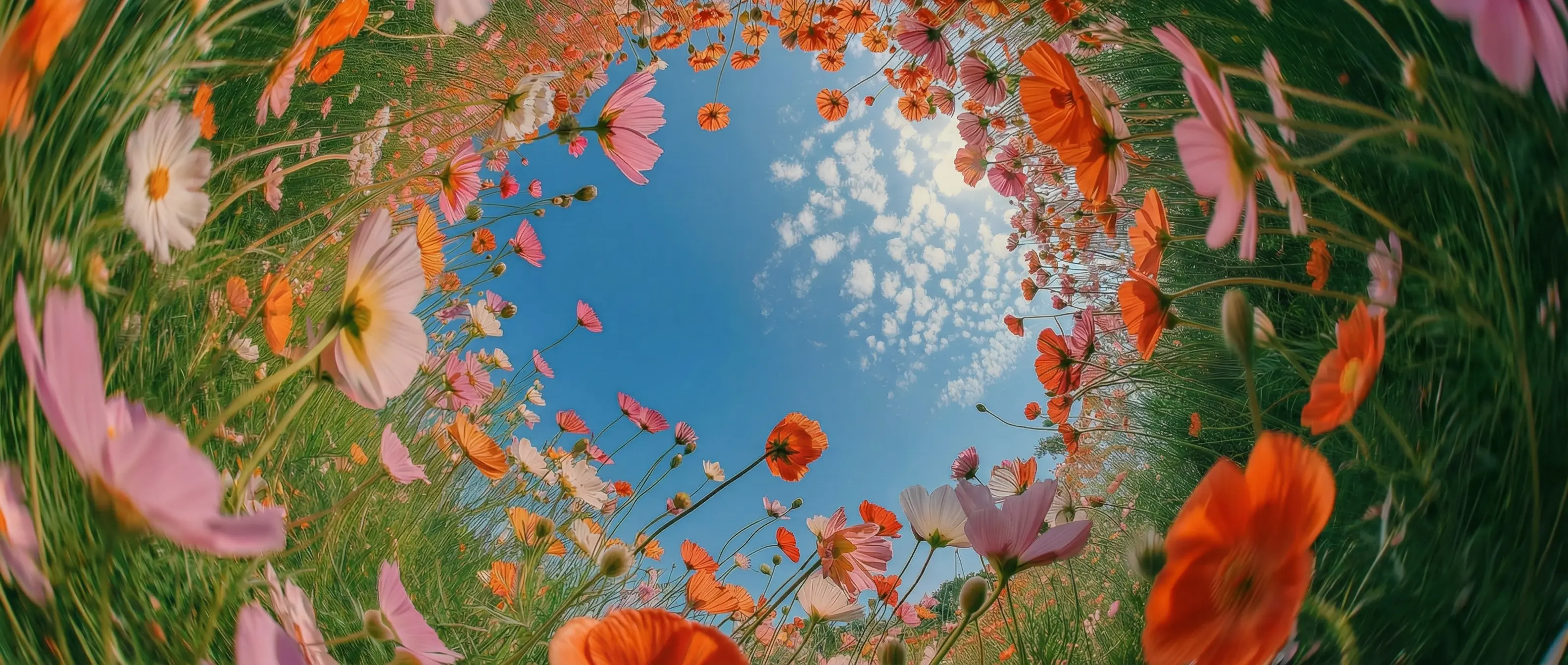
Fast, expressive image creation
Grok Imagine generates images quickly with flexible, creative results. Shape your visuals freely without long wait times or complicated workflows.
Grok Imagine is an AI image generation model by xAI, available directly inside the DaVinci AI Toolkit. It allows creators to generate images from uploads or text prompts with fast, expressive results and accurate text rendering across multiple aspect ratios.
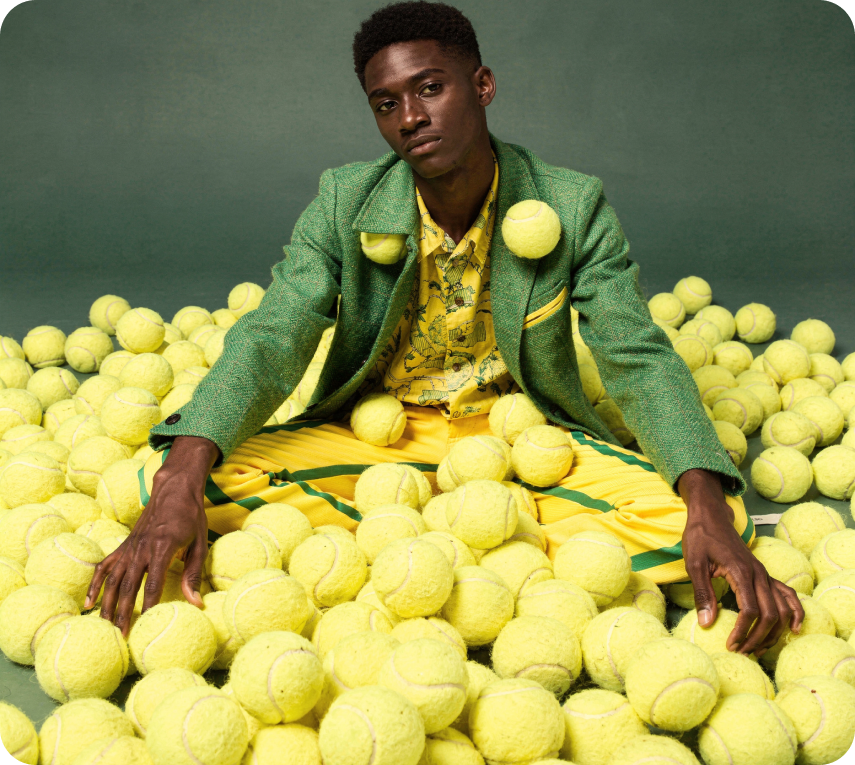
Grok Imagine generates images quickly with flexible, creative results. Shape your visuals freely without long wait times or complicated workflows.
The model produces clear, readable text directly within images. Perfect for graphics, social content, posters, and designs that depend on precise typography.
Supporting aspect ratios like 1:1, 16:9, 9:16, and widescreen, Grok Imagine adapts easily to everything from social posts to presentations and promotional assets.
Upload up to three reference images per prompt to guide results. Iterate on concepts, refine ideas, or rework existing visuals into new creative directions.
Generate images with Grok Imagine directly inside the DaVinci AI Toolkit using simple text prompts or image uploads for fast, creative results.
Grok Imagine is for creators, agencies, filmmakers, and professionals.
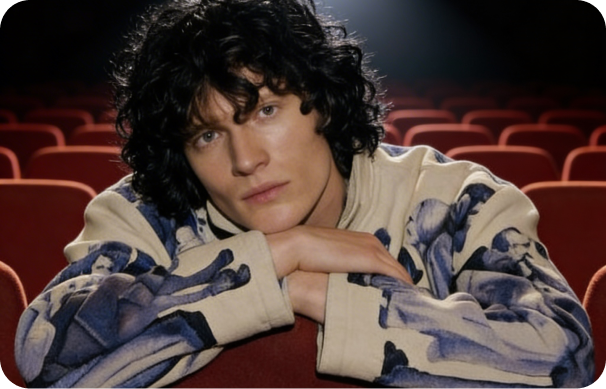
Create thumbnails and social art instantly, with characters that stay consistent and results that always look polished.
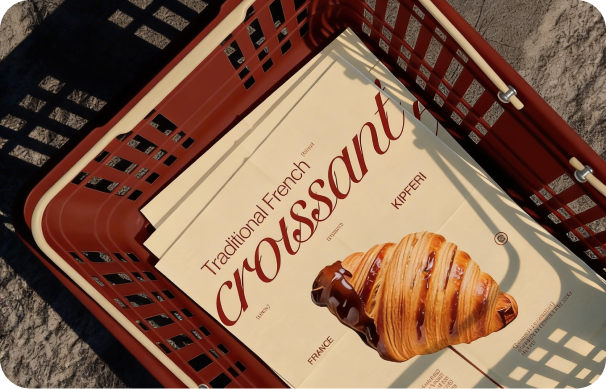
Produce clean, on-brand campaign visuals in 4K - perfect for design, product shots, and ads.
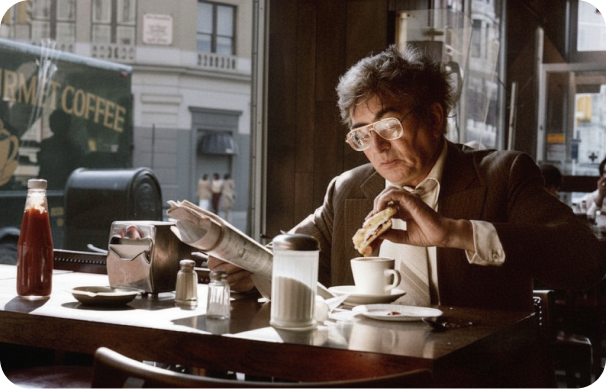
Generate concept frames, storyboards, and mood boards, and explore different scene variations, lighting setups, and cinematic camera angles.
Create thumbnails and social art instantly, with characters that stay consistent and results that always look polished.
Produce clean, on-brand campaign visuals in 4K - perfect for design, product shots, and ads.
Generate concept frames, storyboards, and mood boards, and explore different scene variations, lighting setups, and cinematic camera angles.
Write a prompt or upload references, and Grok Imagine brings your creative vision to life in seconds.
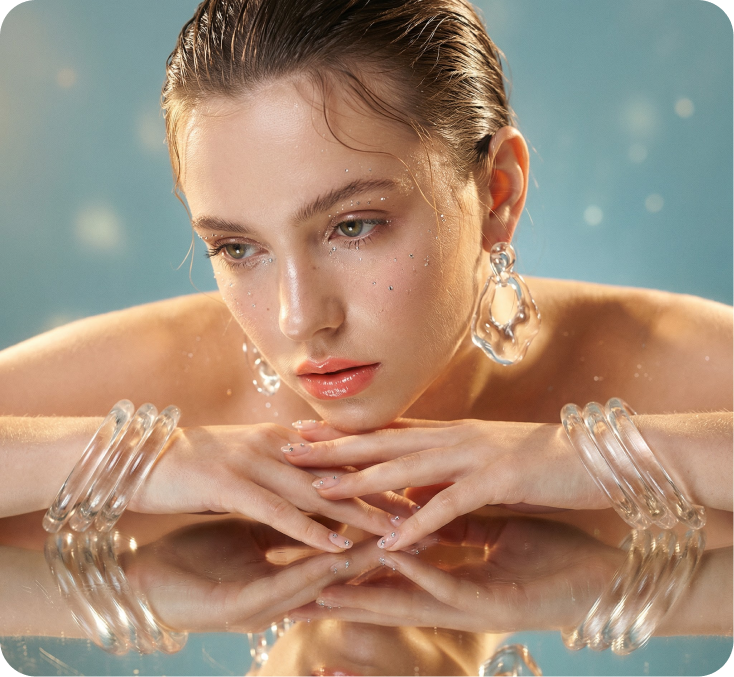
Here’s how Grok Imagine can save you hours of editing time.
Generate images in seconds with fast model performance to explore ideas, ideate quickly, and speed up your creative workflow.
Replace items in your image, like clothing, accessories, or small details, using simple prompts. The model updates the visual while keeping the subject’s identity and structure intact.
Keep your visual style consistent with every edit. Grok Imagine only changes what you ask for, preventing unexpected shifts as you refine or explore new creative directions.
Update the look and mood of your scene without altering your subject. Change the setting, adjust the environment, or shift the tone while keeping core details consistent.
Generate images in seconds with fast model performance to explore ideas, ideate quickly, and speed up your creative workflow.
Replace items in your image, like clothing, accessories, or small details, using simple prompts. The model updates the visual while keeping the subject’s identity and structure intact.
Keep your visual style consistent with every edit. Grok Imagine only changes what you ask for, preventing unexpected shifts as you refine or explore new creative directions.
Update the look and mood of your scene without altering your subject. Change the setting, adjust the environment, or shift the tone while keeping core details consistent.