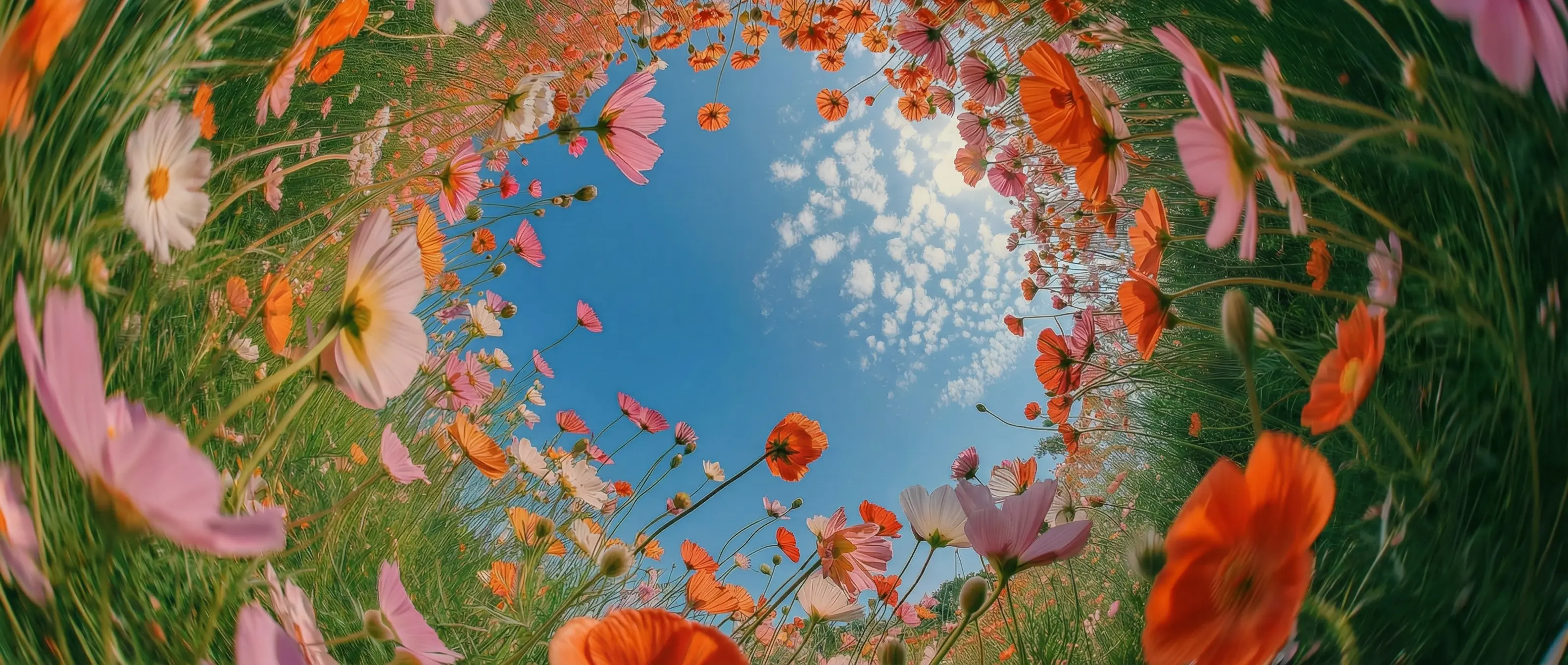
Two tiers, one model
Work at the standard tier while you are still exploring, then switch to pro for the take you actually publish. Same prompt, same controls, a different level of finish.
Work at the standard tier while you are still exploring, then switch to pro for the take you actually publish. Same prompt, same controls, a different level of finish.
Turbo is tuned for throughput rather than one perfect render. Useful when the job needs twenty versions of an idea and you have an afternoon to find the right one.
Pick the exact length the edit needs. Short enough for a cut-in, long enough to carry a full beat on its own without padding.
Turbo sits on the same 3.0 generation Kling built its reputation on, tuned for speed rather than maximum fidelity.
Start creating with Kling V3 Turbo by following a few simple steps directly inside the DaVinci AI Toolkit.
Kling V3 Turbo suits creators who need a lot of video quickly, with a higher-quality option for the ones that ship.
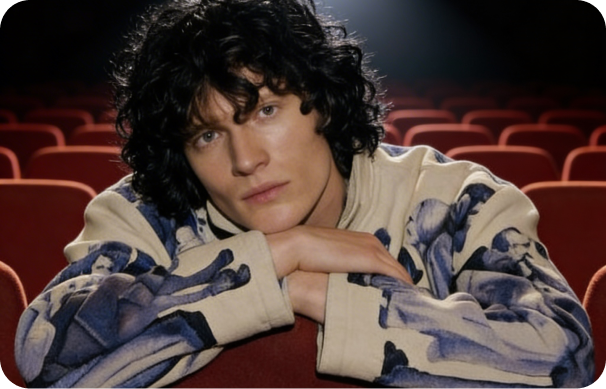
Turn out a week of clips in an afternoon. Generate several versions, keep the one that lands, and move on without spending everything on the first attempt.
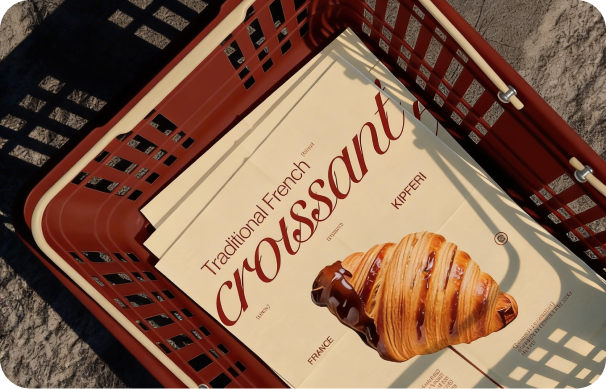
Explore a concept broadly before committing to it. Draft at the standard tier, present at pro, and carry the same prompt through both.
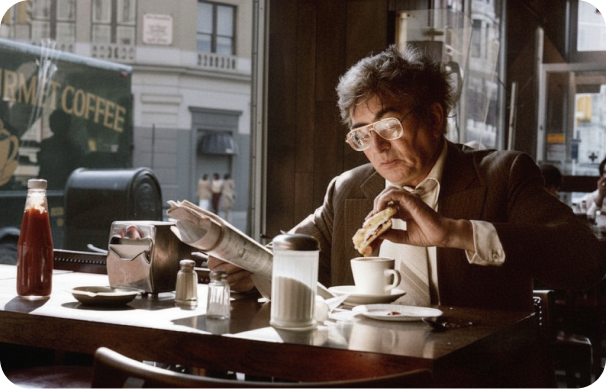
Block out a sequence shot by shot at whatever length each beat needs, then re-render only the keepers at higher quality.
Turn out a week of clips in an afternoon. Generate several versions, keep the one that lands, and move on without spending everything on the first attempt.
Explore a concept broadly before committing to it. Draft at the standard tier, present at pro, and carry the same prompt through both.
Block out a sequence shot by shot at whatever length each beat needs, then re-render only the keepers at higher quality.
Enter a text prompt or upload an image, and generate a video with sound in seconds.
Kling V3 Turbo brings together fast generation, two quality tiers, and native audio to produce video from text or a single image.
Generate from a written prompt, or animate a single still image as the opening frame of the clip.
Two quality tiers from one model, so drafts stay cheap and the final render stays sharp.
Sound is produced with the visuals as part of the same generation, so nothing needs adding afterwards.
Anything from three to fifteen seconds, set per generation rather than fixed by the model.
Generate from a written prompt, or animate a single still image as the opening frame of the clip.
Two quality tiers from one model, so drafts stay cheap and the final render stays sharp.
Sound is produced with the visuals as part of the same generation, so nothing needs adding afterwards.
Anything from three to fifteen seconds, set per generation rather than fixed by the model.