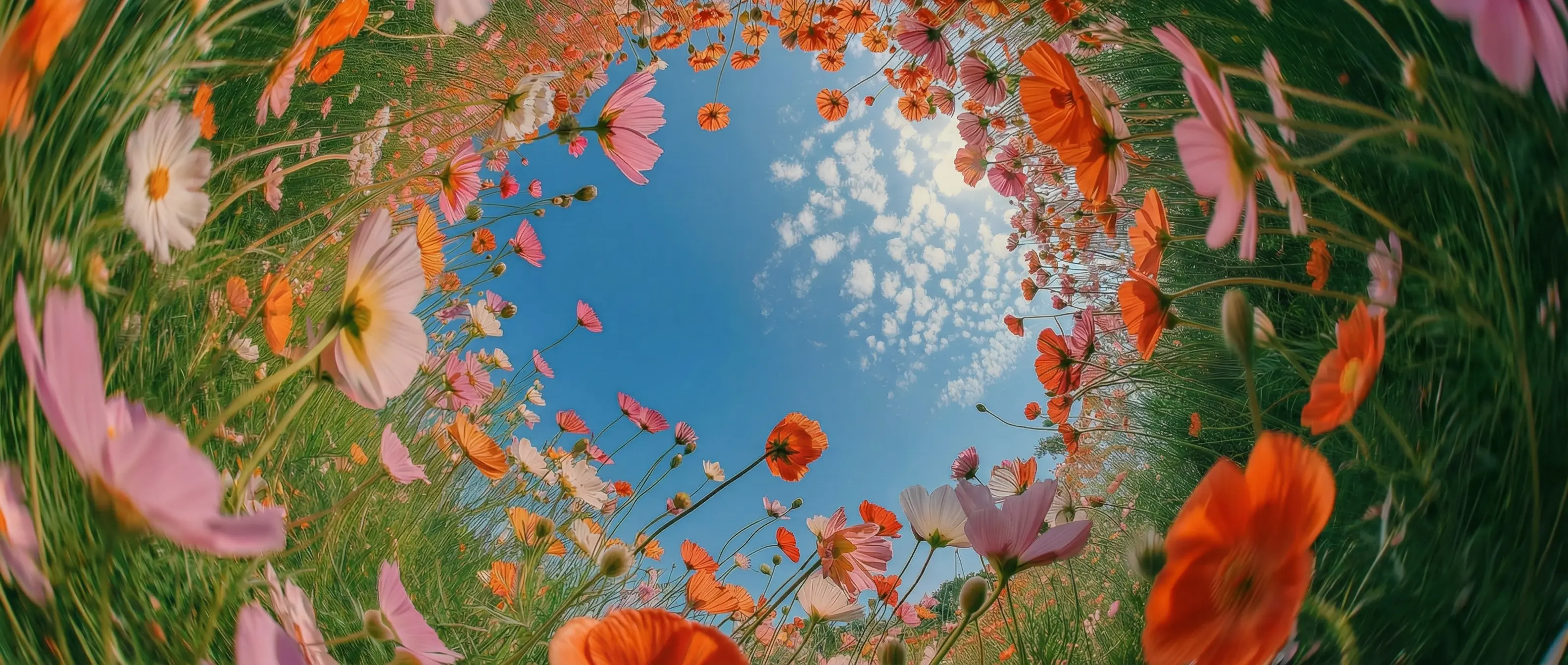
Commercially safe by design
Generate video trained exclusively on licensed and public domain content. From client campaigns to brand films, your footage stays commercially safe.
Adobe Firefly Video is Adobe's commercially safe video generator, trained only on licensed content. It delivers precise camera control, stable motion, rich atmospheric detail, and IP-safe footage you can confidently use in client work.
Generate video trained exclusively on licensed and public domain content. From client campaigns to brand films, your footage stays commercially safe.
Direct shot size, camera angle, and motion before you generate so every clip lands exactly the way you framed it. Ideal for B-roll, inserts, and product shots.
Keep subjects, lighting, and textures stable from first frame to last, so generated clips cut cleanly into a real edit.
With deep scene understanding, Adobe Firefly Video renders atmospheric detail such as weather, mist, particles, or firelight directly in your footage.
Adobe Firefly Video by Adobe enables fast, commercially safe video creation directly within the DaVinci AI Toolkit.
From marketing teams to filmmakers and editors, Adobe Firefly Video integrates smoothly into any creative workflow.
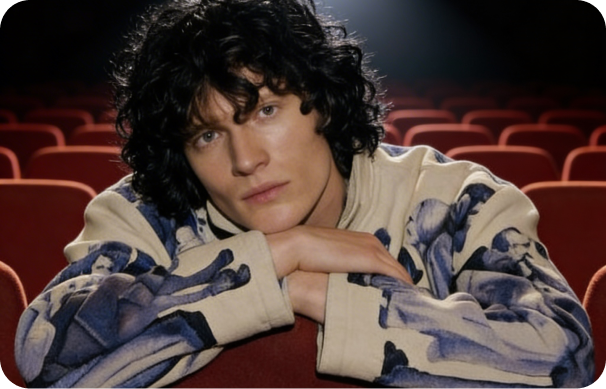
Build and maintain a consistent visual identity across reels, ads, and short-form clips with ease.
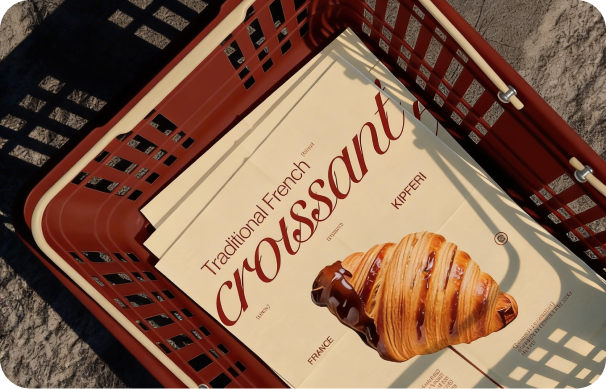
Generate product videos, test new looks or angles, and produce campaign-ready footage without licensing risk.
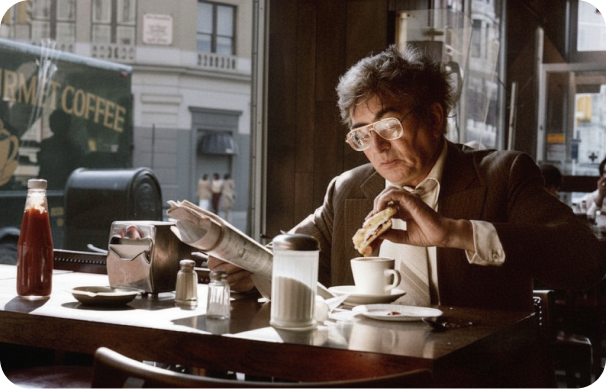
Develop B-roll, story frames, and establishing shots that help fill gaps in an existing timeline.
Build and maintain a consistent visual identity across reels, ads, and short-form clips with ease.
Generate product videos, test new looks or angles, and produce campaign-ready footage without licensing risk.
Develop B-roll, story frames, and establishing shots that help fill gaps in an existing timeline.
Enter a prompt or upload an image, and the Adobe Firefly Video model instantly transforms your idea into cinematic motion.
Unlock smarter, more powerful AI video generation with Adobe Firefly Video.
Create high-resolution video up to 4K with sharp detail, ideal for ads, broadcast work, and large-format screens.
Set shot size, angle, and camera motion. Zoom, pan, and tilt behave exactly the way a real camera would move through your scene.
Pin the first and last frame so motion starts and ends exactly where you planned, keeping every clip on-brief.
Every export carries provenance metadata showing how the clip was made, giving brands and clients built-in transparency.
Create high-resolution video up to 4K with sharp detail, ideal for ads, broadcast work, and large-format screens.
Set shot size, angle, and camera motion. Zoom, pan, and tilt behave exactly the way a real camera would move through your scene.
Pin the first and last frame so motion starts and ends exactly where you planned, keeping every clip on-brief.
Every export carries provenance metadata showing how the clip was made, giving brands and clients built-in transparency.