Frame-first output in DaVinci
In DaVinci, Pika 2.2 composes a still opening frame before any motion is added, so subject placement, framing, and lighting are resolved before the clip starts moving.
In DaVinci, Pika 2.2 composes a still opening frame before any motion is added, so subject placement, framing, and lighting are resolved before the clip starts moving.
Inside DaVinci, upload a still and Pika 2.2 uses it as the first frame of the video, so the product, character, or layout you shot stays exactly as you framed it.
In DaVinci, draft at 720p while you are still testing an idea, then re-run the same setup at 1080p once the shot is right and the clip is going out.
Choose 5 or 10 seconds before you generate in DaVinci. Five fits a single beat or a product turn, ten leaves room for an action to finish, and either way you know the exact length you are cutting against.
Start creating with Pika 2.2 by following a few simple steps directly inside the DaVinci AI Toolkit.
In DaVinci, Pika 2.2 fits anyone who needs a short video out of a prompt or a single still, without booking a shoot or opening an editor.
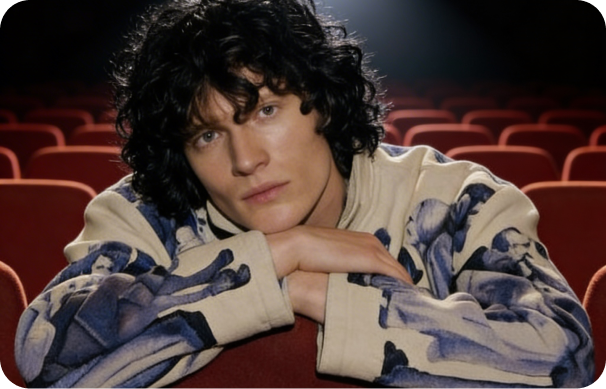
Inside DaVinci, turn a prompt or a photo from your camera roll into a 5 or 10 second clip for reels and shorts, and re-run it until the motion lands the way you want.
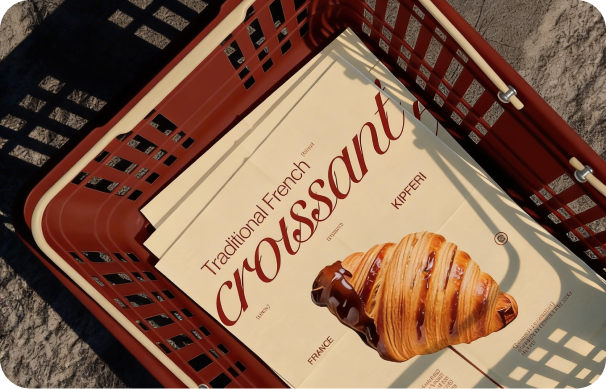
In DaVinci, build concepts that open on your own product still rather than a generated stand-in, and hand clients a 1080p cut the same day.
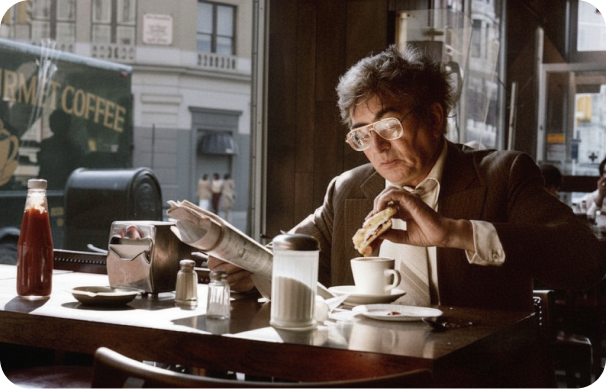
Sketch a shot before it reaches a storyboard through DaVinci. Set the opening frame yourself, keep the length to 5 or 10 seconds, and use the result as a moving reference.
Inside DaVinci, turn a prompt or a photo from your camera roll into a 5 or 10 second clip for reels and shorts, and re-run it until the motion lands the way you want.
In DaVinci, build concepts that open on your own product still rather than a generated stand-in, and hand clients a 1080p cut the same day.
Sketch a shot before it reaches a storyboard through DaVinci. Set the opening frame yourself, keep the length to 5 or 10 seconds, and use the result as a moving reference.
Enter a text prompt or upload an image, and generate a 5 or 10 second video with Pika 2.2 at 720p or 1080p in DaVinci.
Inside DaVinci, Pika 2.2 runs every video through a first frame, either built from your prompt or uploaded by you, then animates it at 720p or 1080p.
In DaVinci, a text prompt is turned into a still image first and animated second, so composition is settled as a picture before motion is applied.
Inside DaVinci, a still you upload becomes frame one of the clip, so the video opens on the exact composition you supplied instead of a reinterpretation of it.
In DaVinci, 720p and 1080p are available on both text and image input, so the resolution is a choice at generation time rather than a property of the route you took.
Duration is set to 5 or 10 seconds up front, so output length is decided before generation instead of trimmed afterwards through DaVinci.
In DaVinci, a text prompt is turned into a still image first and animated second, so composition is settled as a picture before motion is applied.
Inside DaVinci, a still you upload becomes frame one of the clip, so the video opens on the exact composition you supplied instead of a reinterpretation of it.
In DaVinci, 720p and 1080p are available on both text and image input, so the resolution is a choice at generation time rather than a property of the route you took.
Duration is set to 5 or 10 seconds up front, so output length is decided before generation instead of trimmed afterwards through DaVinci.