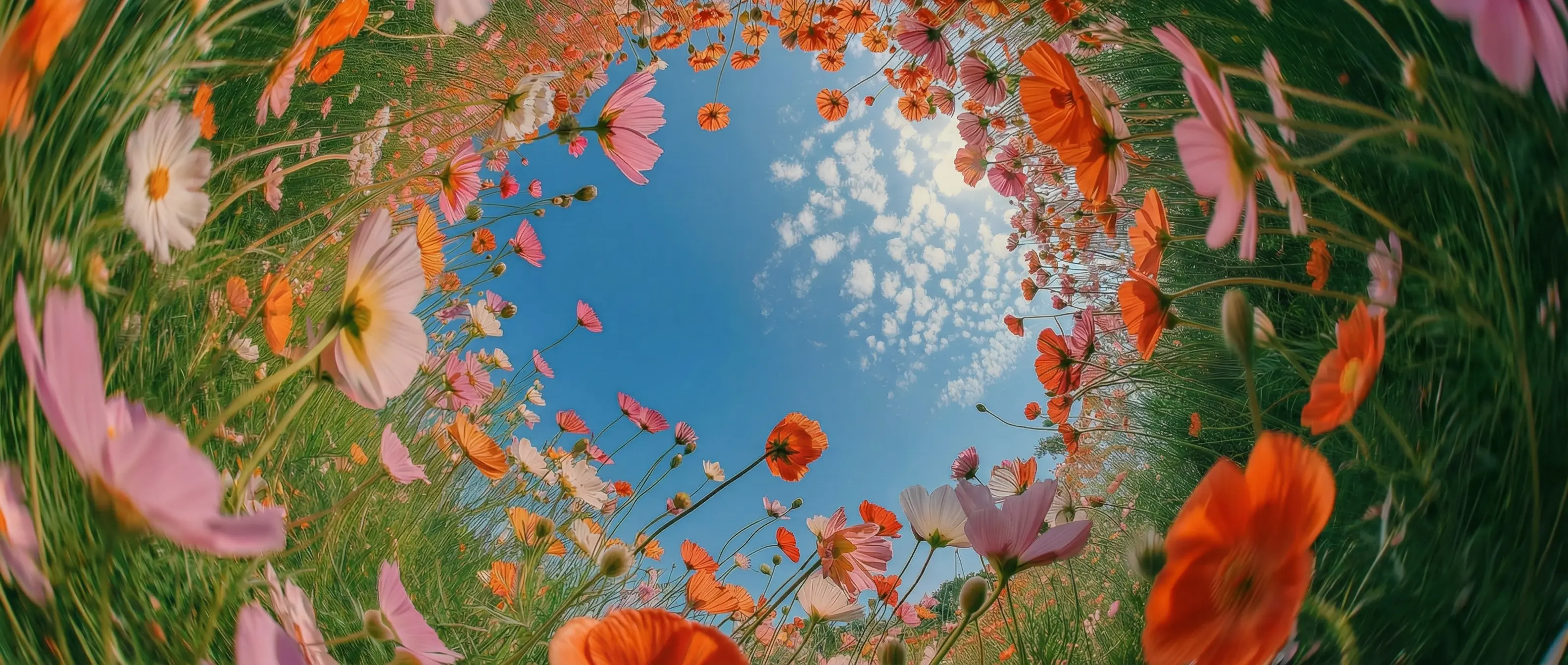
Animate any still in DaVinci
Upload an image as the start frame in DaVinci and describe what happens next. Flux 3 Max keeps your image as the opening shot and builds the motion from there.
Upload an image as the start frame in DaVinci and describe what happens next. Flux 3 Max keeps your image as the opening shot and builds the motion from there.
Add an optional end frame in DaVinci and Flux 3 Max moves from your first image to your last, so you decide exactly where the shot lands.
Flux 3 Max in DaVinci generates audio together with the video, from ambience to dialogue described in your prompt. Turn it off when you only need visuals.
Choose any length from 5 to 20 seconds in DaVinci, one second at a time, and frame it in 16:9, 9:16, 1:1, 4:3, 3:4, or ultrawide 21:9 and 2:1.
Start creating with Flux 3 Max by following a few simple steps directly inside the DaVinci AI Toolkit.
Flux 3 Max in DaVinci suits anyone who starts from an image and wants it to move, with sound, for up to 20 seconds.
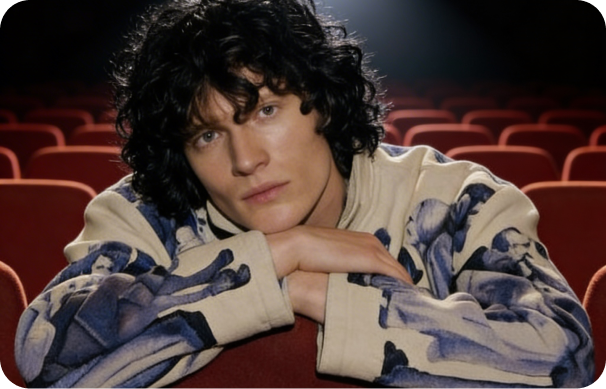
Bring photos and artwork to life as 9:16 reels in DaVinci, with sound generated alongside the picture.
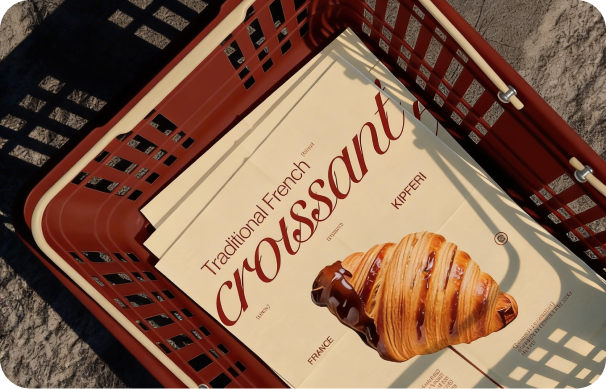
Turn a product shot into a start frame in DaVinci and end on your packshot, with a clip of up to 20 seconds.
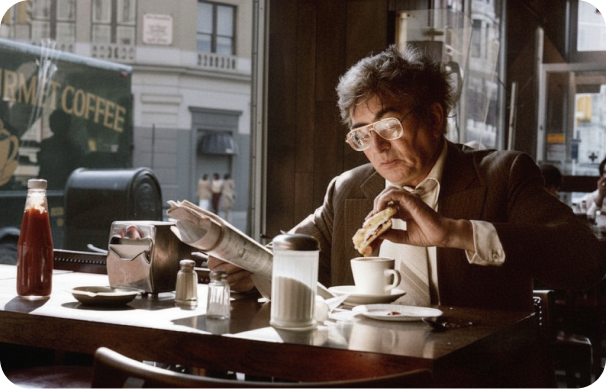
Pin the first and last frame of a shot in DaVinci, let Flux 3 Max fill the motion, and frame it in ultrawide 21:9.
Bring photos and artwork to life as 9:16 reels in DaVinci, with sound generated alongside the picture.
Turn a product shot into a start frame in DaVinci and end on your packshot, with a clip of up to 20 seconds.
Pin the first and last frame of a shot in DaVinci, let Flux 3 Max fill the motion, and frame it in ultrawide 21:9.
Upload an image or enter a text prompt, and generate a 5 to 20 second clip with sound using Flux 3 Max in DaVinci.
Flux 3 Max in DaVinci combines start and end frames, native audio, and clips of up to 20 seconds in 720p or 1080p.
Create in DaVinci from a still image, with an optional end frame, or start from a text prompt alone.
Sound is generated together with the video in DaVinci and matched to the action. Switch it off when you want a silent clip.
Frame clips in DaVinci for any screen: 16:9, 9:16, 1:1, 4:3, 3:4, and the ultrawide 21:9 and 2:1.
Flux 3 Max is fal’s post-trained version of Black Forest Labs’ Flux 3, available in DaVinci next to Flux 3 itself.
Create in DaVinci from a still image, with an optional end frame, or start from a text prompt alone.
Sound is generated together with the video in DaVinci and matched to the action. Switch it off when you want a silent clip.
Frame clips in DaVinci for any screen: 16:9, 9:16, 1:1, 4:3, 3:4, and the ultrawide 21:9 and 2:1.
Flux 3 Max is fal’s post-trained version of Black Forest Labs’ Flux 3, available in DaVinci next to Flux 3 itself.