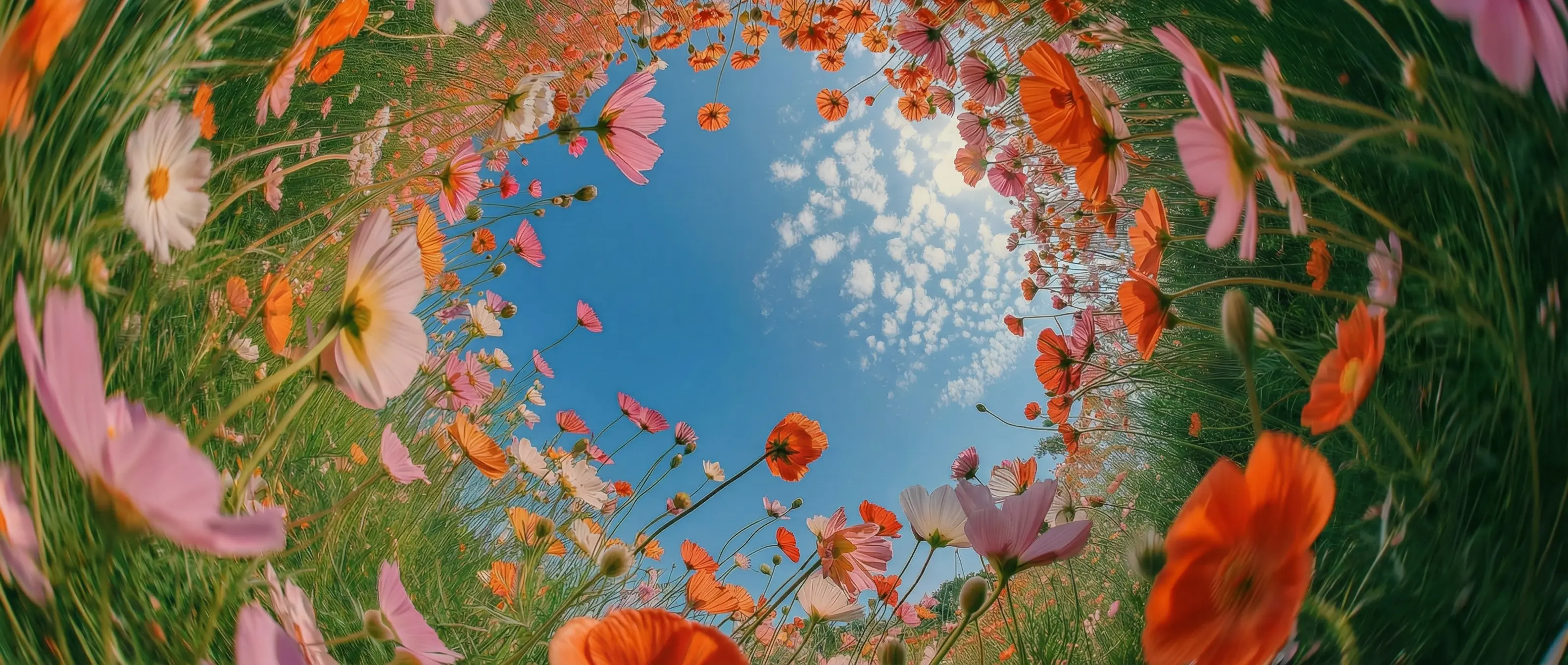
Edits that stay contained in DaVinci
Ask for one change and the rest of the frame stays where it was in DaVinci. Nothing drifts, and nothing gets quietly repainted while you were looking elsewhere.
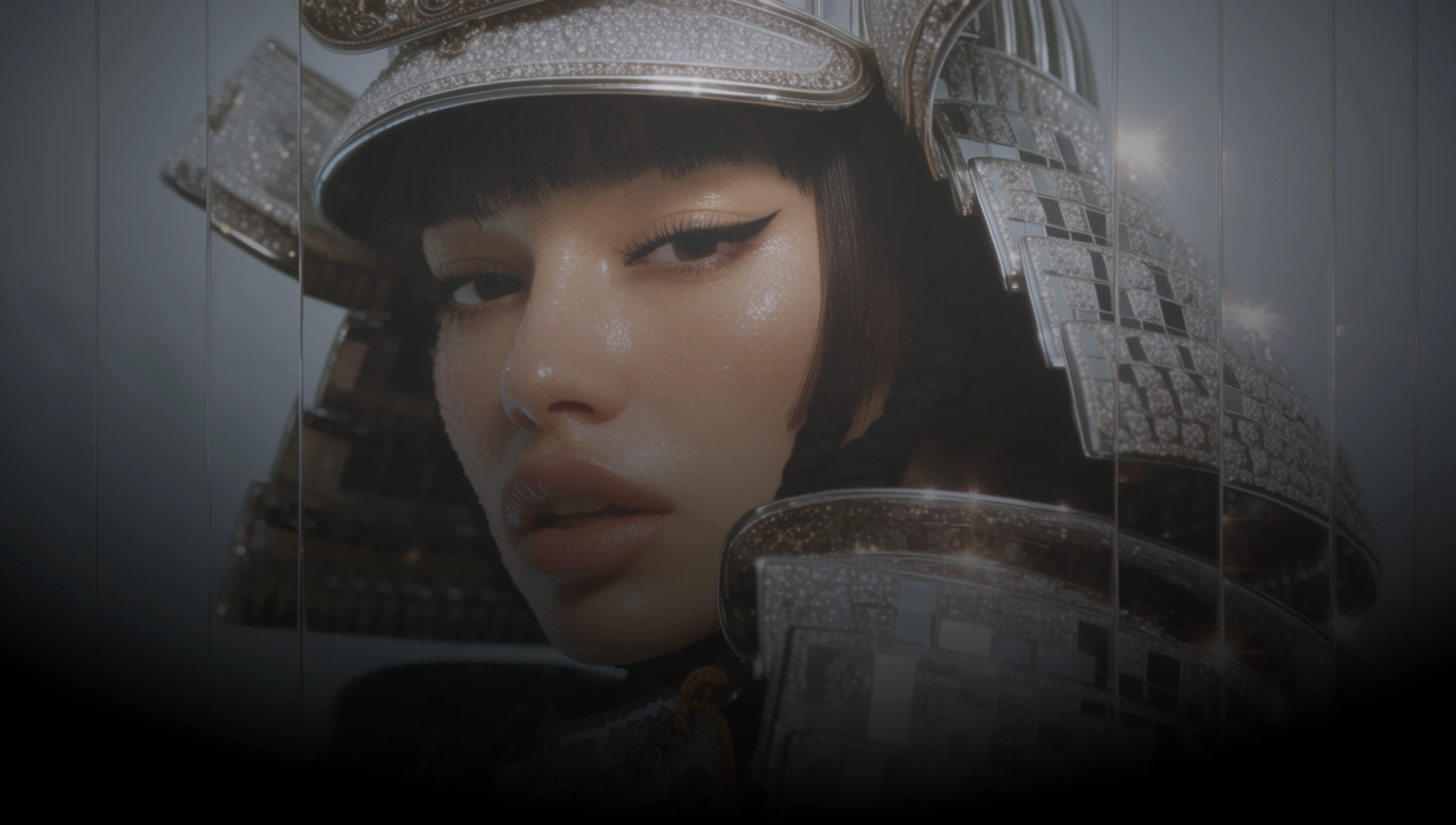
DaVinci brings together image models from different AI providers — Meta Muse Image among them. Generate from a prompt or edit precisely: Muse changes only what you ask and renders text, charts, and QR codes accurately.
Ask for one change and the rest of the frame stays where it was in DaVinci. Nothing drifts, and nothing gets quietly repainted while you were looking elsewhere.
Inside DaVinci, text, charts, diagrams, and even QR codes come out accurate rather than approximate, so the image works as a real asset instead of a mockup.
In DaVinci, compose from as many as ten reference images in a single edit, pulling a subject from one and a setting or a style from another.
Inside DaVinci, keep editing the same image and it stays consistent from one pass to the next, instead of resetting into something new each time.
Create images, edit existing visuals, and refine your prompt with Meta Muse Image directly inside DaVinci AI.
Meta Muse Image is built for teams who edit as much as they generate through DaVinci.
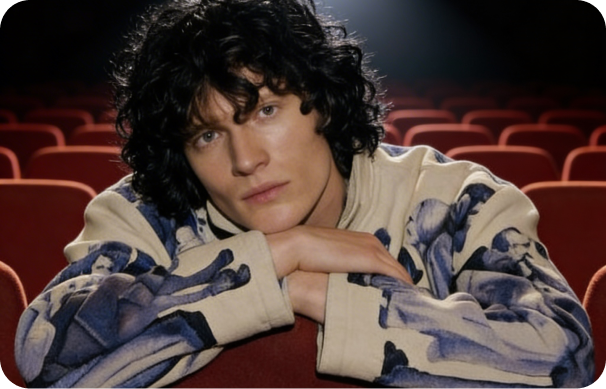
Make one change at a time and keep everything else intact in DaVinci. Useful when a layout is nearly right and only one element needs to move.
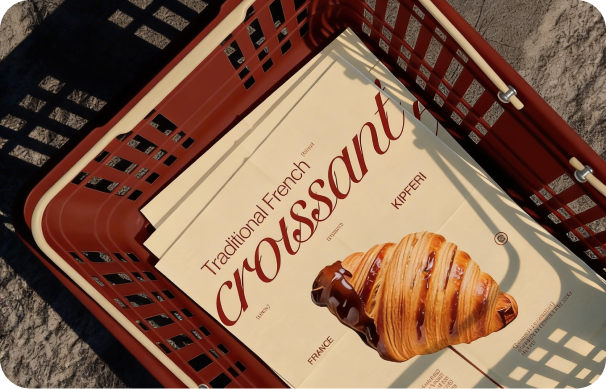
In DaVinci, build assets where the small print matters, from pricing and labels to codes on packaging, and edit them without breaking what works.
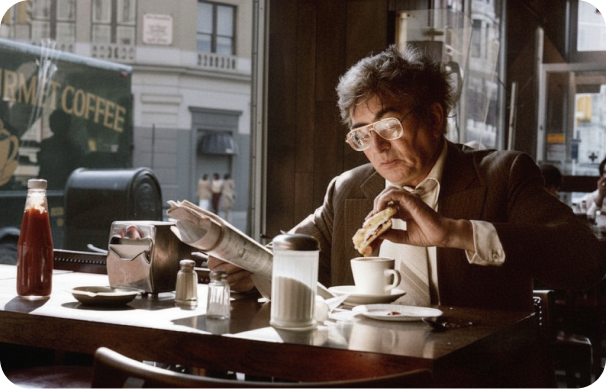
Inside DaVinci, produce store imagery, covers, and thumbnails, then revise them across several passes without the image drifting off-brief.
Make one change at a time and keep everything else intact in DaVinci. Useful when a layout is nearly right and only one element needs to move.
In DaVinci, build assets where the small print matters, from pricing and labels to codes on packaging, and edit them without breaking what works.
Inside DaVinci, produce store imagery, covers, and thumbnails, then revise them across several passes without the image drifting off-brief.
Describe your idea or upload a reference, and generate or edit an image with Meta Muse Image in seconds in DaVinci.
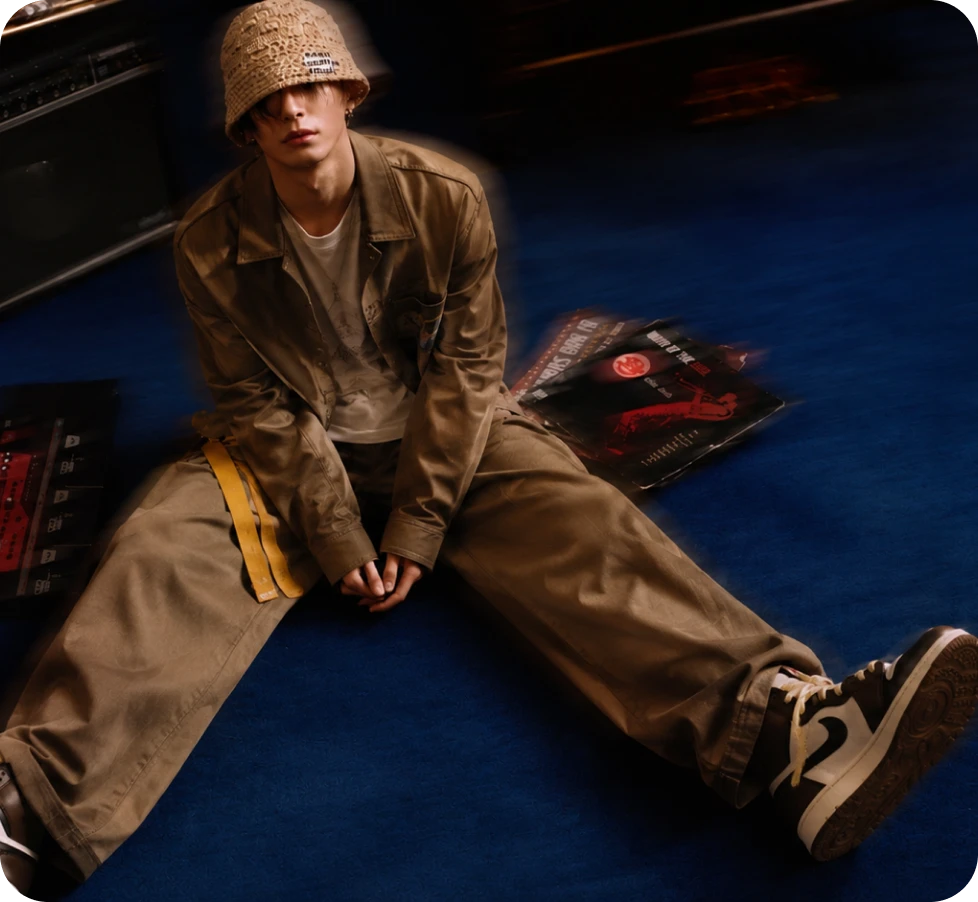
Here's why creators choose Meta Muse Image inside DaVinci.
Edits apply only where you asked, leaving the rest of the image untouched between passes through DaVinci.
Text, plots, and QR codes render correctly rather than as decorative approximations of the real thing in DaVinci.
Compose an edit from as many as ten reference images in a single request inside DaVinci.
Leave the aspect ratio out and Muse picks dimensions to suit the request, or set one of nine yourself through DaVinci.
Edits apply only where you asked, leaving the rest of the image untouched between passes through DaVinci.
Text, plots, and QR codes render correctly rather than as decorative approximations of the real thing in DaVinci.
Compose an edit from as many as ten reference images in a single request inside DaVinci.
Leave the aspect ratio out and Muse picks dimensions to suit the request, or set one of nine yourself through DaVinci.