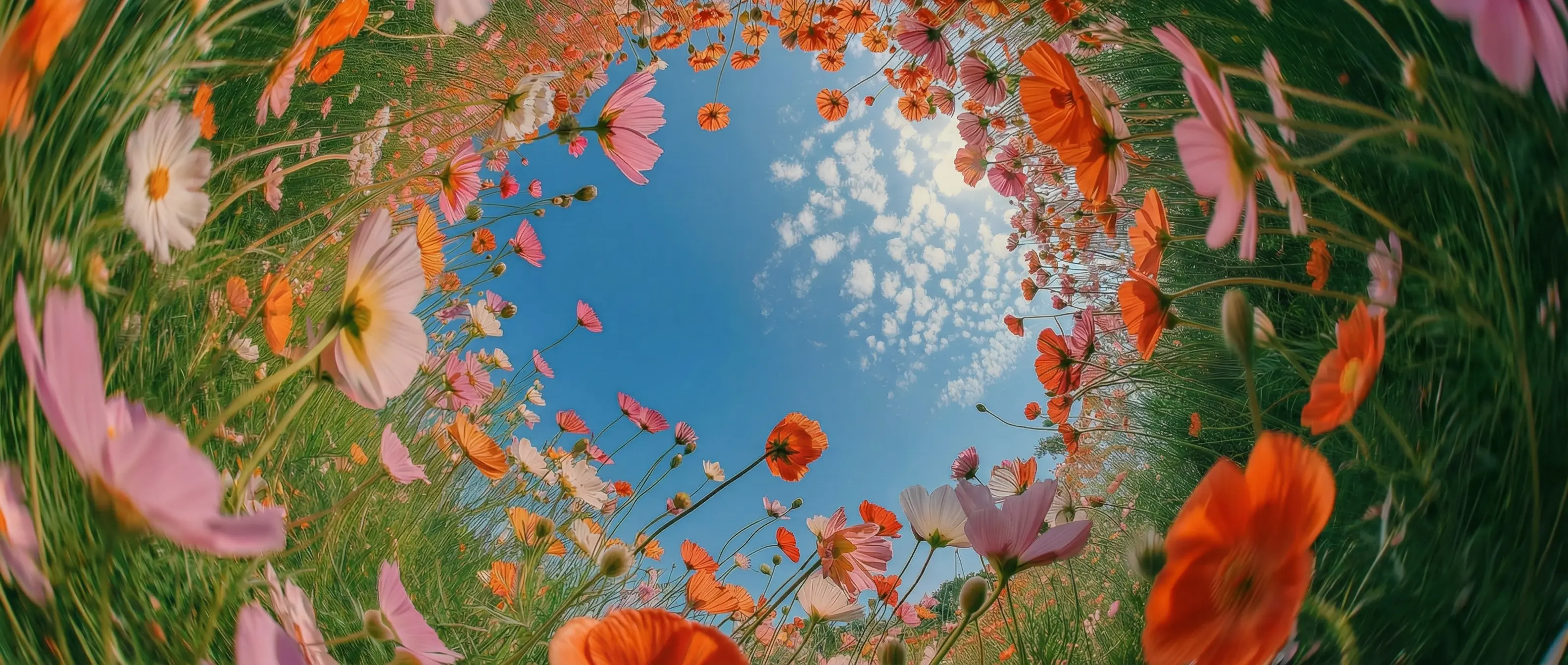
Subjects stay themselves in DaVinci
Faces, products, and places keep the features that make them recognizable when you move them into a different setting or composition with GPT Image 2.5 in DaVinci.
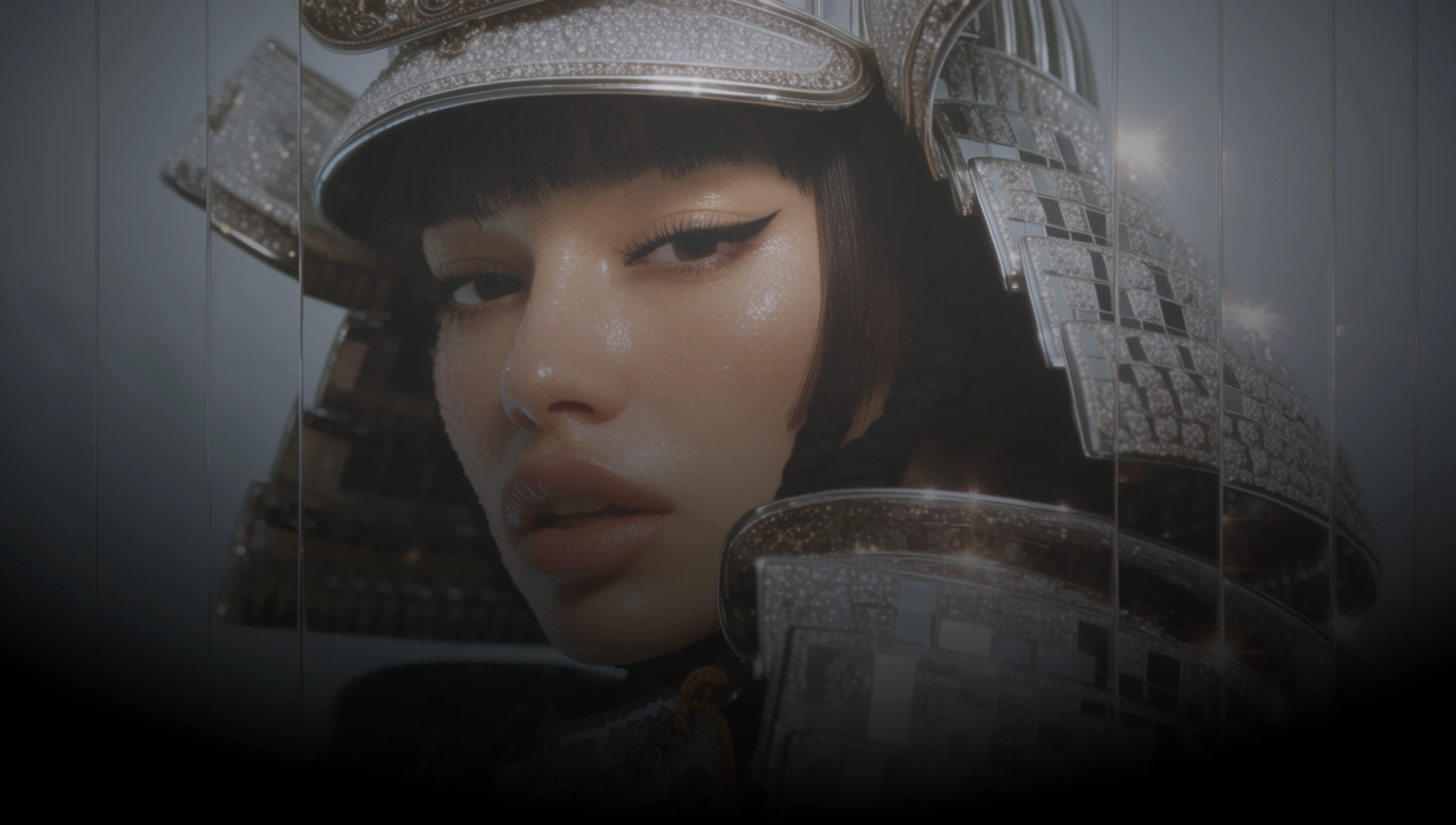
Create with GPT Image 2.5 in DaVinci, a creative workspace that brings together image models from different AI providers. Work from reference photos: move a person, a product, or a place into a new setting or style while the details that identify it carry through.
Faces, products, and places keep the features that make them recognizable when you move them into a different setting or composition with GPT Image 2.5 in DaVinci.
Change one part of the frame in DaVinci and the rest is left alone. Add a mask when you want the edit confined to an area you marked yourself.
Combine as many as sixteen reference images in one edit through DaVinci, so the subject, the product, and the setting can each come from a different photo.
Generate up to 3840 px on the long edge in square, landscape, or portrait from DaVinci, so the result drops into a layout without being upscaled first.
Generate images, edit them with reference photos, and refine your prompt with GPT Image 2.5 directly inside DaVinci AI.
GPT Image 2.5 is built for marketers, ecommerce teams, and creators, and it is ready to use in DaVinci.
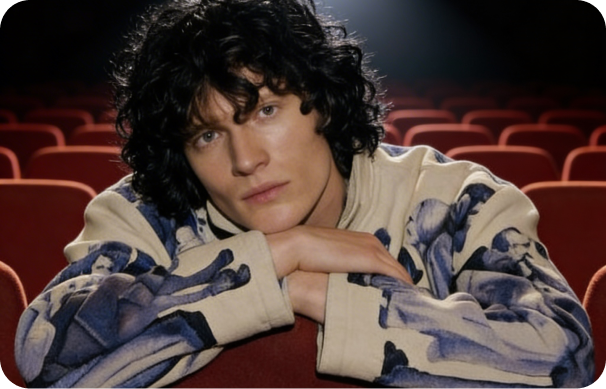
Put the same character or object into new scenes and styles in DaVinci without redrawing it from scratch every time the concept moves.
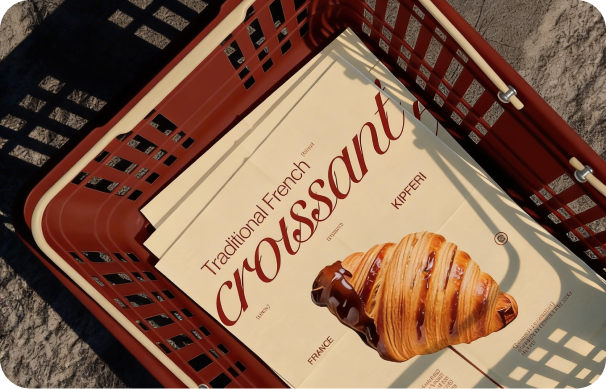
Keep the product looking like the product across a whole campaign, then adjust single elements with a mask in DaVinci when feedback comes in.
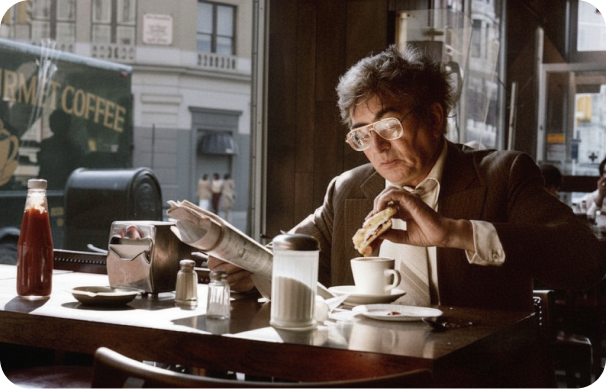
Generate thumbnails, banners, and ecommerce imagery in DaVinci from photos you already have, then edit them as the brief changes.
Put the same character or object into new scenes and styles in DaVinci without redrawing it from scratch every time the concept moves.
Keep the product looking like the product across a whole campaign, then adjust single elements with a mask in DaVinci when feedback comes in.
Generate thumbnails, banners, and ecommerce imagery in DaVinci from photos you already have, then edit them as the brief changes.
Describe your idea, add a reference photo if you have one, and generate it with GPT Image 2.5 in DaVinci.
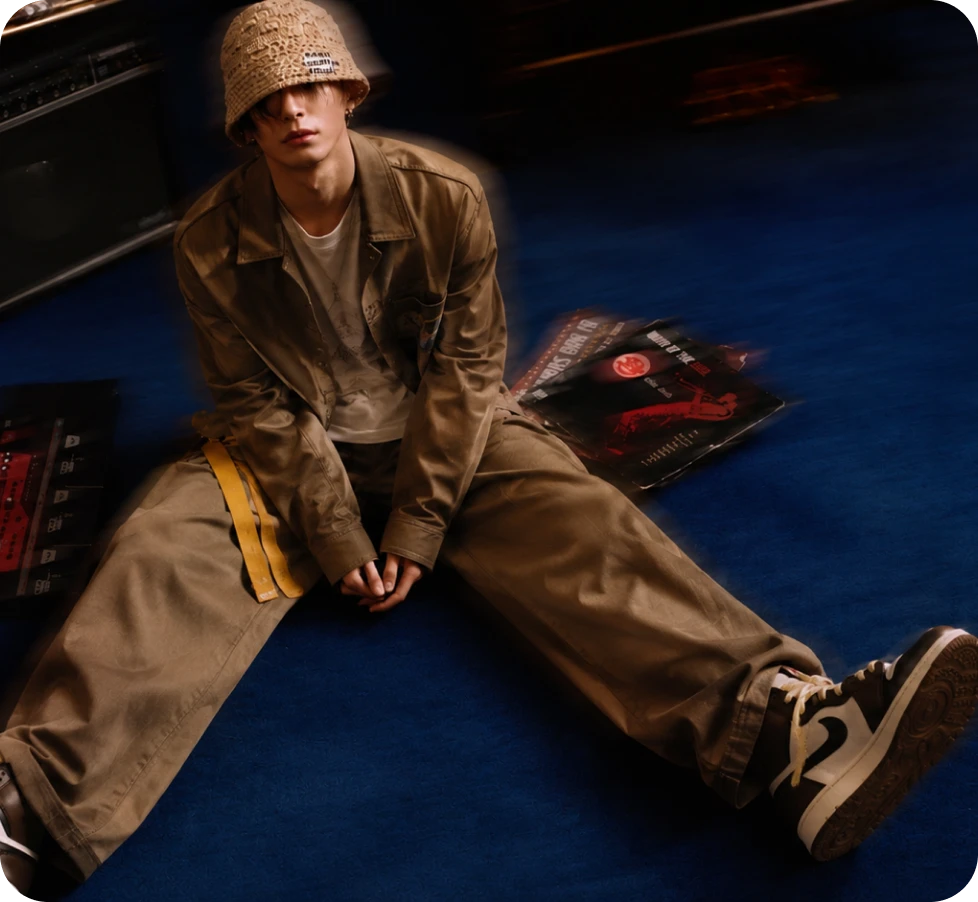
Here’s why creators choose GPT Image 2.5 in DaVinci.
Subjects carry their identifying detail into new settings, styles, and compositions when you edit with GPT Image 2.5 in DaVinci.
Bring in as many as 16 reference photos in one edit through DaVinci and describe the change you want made.
Mark an area with a mask in DaVinci and the change is confined to it, so the rest of the frame is untouched.
Up to 3840 px on the long edge, in square, landscape, or portrait, up to a 3:1 ratio, generated in DaVinci.
Subjects carry their identifying detail into new settings, styles, and compositions when you edit with GPT Image 2.5 in DaVinci.
Bring in as many as 16 reference photos in one edit through DaVinci and describe the change you want made.
Mark an area with a mask in DaVinci and the change is confined to it, so the rest of the frame is untouched.
Up to 3840 px on the long edge, in square, landscape, or portrait, up to a 3:1 ratio, generated in DaVinci.