AI Image Prompt Examples: What AI Can Create, by Use
AI image generators can make product photos, social media backgrounds, illustrations, posters with a few words of text, and edits of photos you already have. They still fall short on long or exact text, logos and other brand details, the same character across many images, and anything that has to show a real person or a real event accurately. The AI image prompt examples below are grouped by use, and each one comes with the image it produced and the thing to check before you publish it. Every image in this article was made in DaVinci with the prompt printed next to it, without retouching. Use the prompts as starting points: swap in your own subject, colors, and format.
What Kinds of Images Can AI Create?
Most requests fall into five groups:
Photo-style images of things that don't exist yet, like a product in a new color or a room before it's furnished.
Backgrounds and scenes for social posts, banners, and slides, with space left for your own text.
Illustrations in a chosen style, from children's book art to flat icons.
Simple graphic layouts with short text, such as posters and invitations.
Edits of an existing photo: a new background, a different season, or one object changed.
What these have in common is that a plausible picture is enough. The further a job moves toward exact facts, like a specific face, a real logo, or a full paragraph of text, the more work it needs after generation.
AI Image Prompt Examples by Use
Product Photos
A clean product shot is one of the most reliable jobs for AI, because simple surfaces, soft light, and one object leave little room for mistakes. It's best for mockups, concept tests, and pages where the product doesn't exist in that color or finish yet.
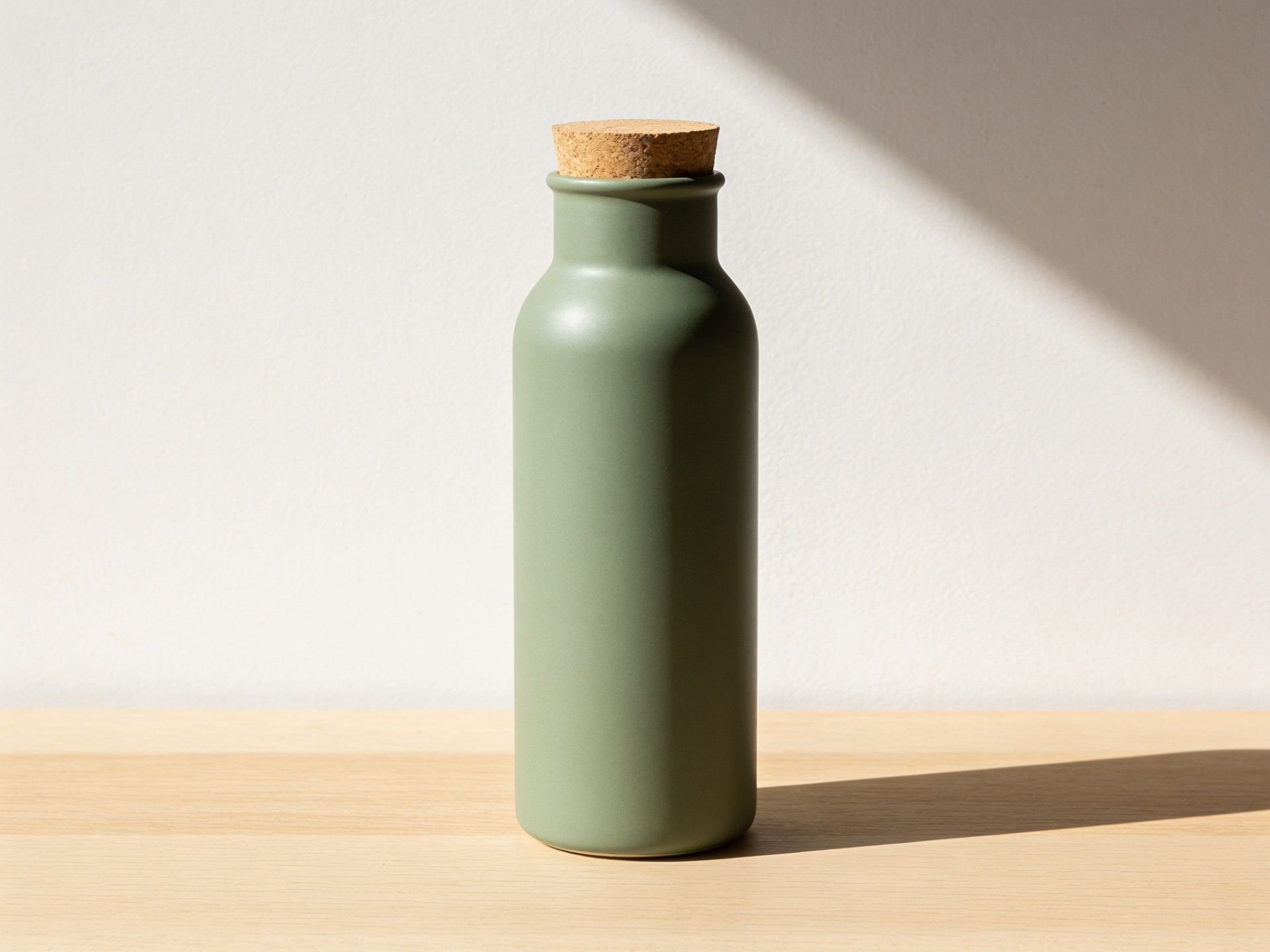
What to check: the shape and proportions against the real product. A generated bottle can gain an extra ridge or a slightly different lid, which matters once a customer compares it with what arrives. Ours added a small pouring lip to the rim that the prompt never mentioned. For a photo of your actual product, edit a real photo instead (see the last example).
Social Media Posts
For social posts, ask for the scene and leave the text out. A generator can place empty space where you want it, and you add the caption or headline later in an editor, where spelling and fonts stay under your control.
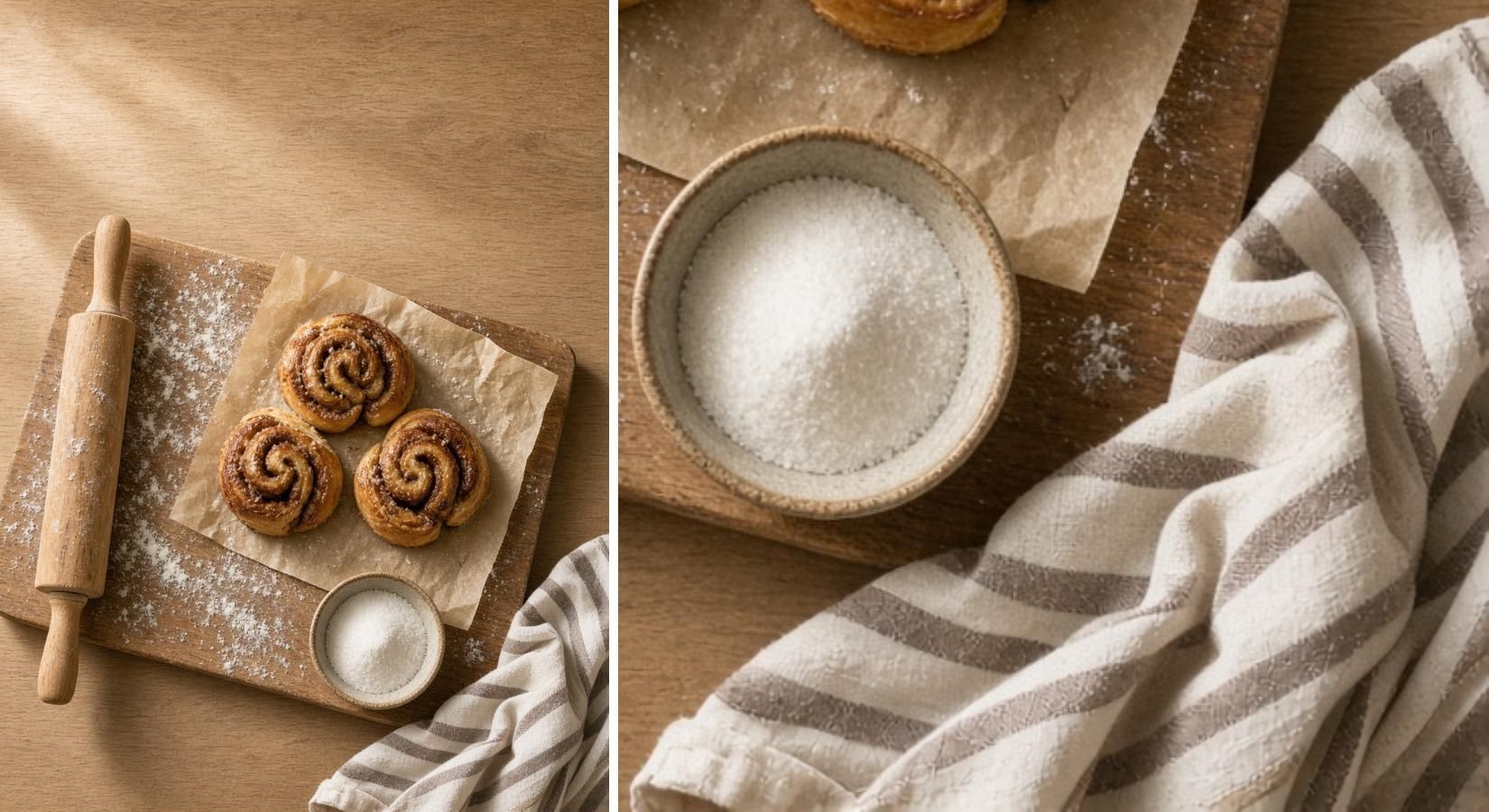
What to check: counts and small objects. Ours got the three rolls right and left the top of the frame empty, but the striped towel shrank to a corner at the edge, so it would disappear in a square crop.
Illustrations
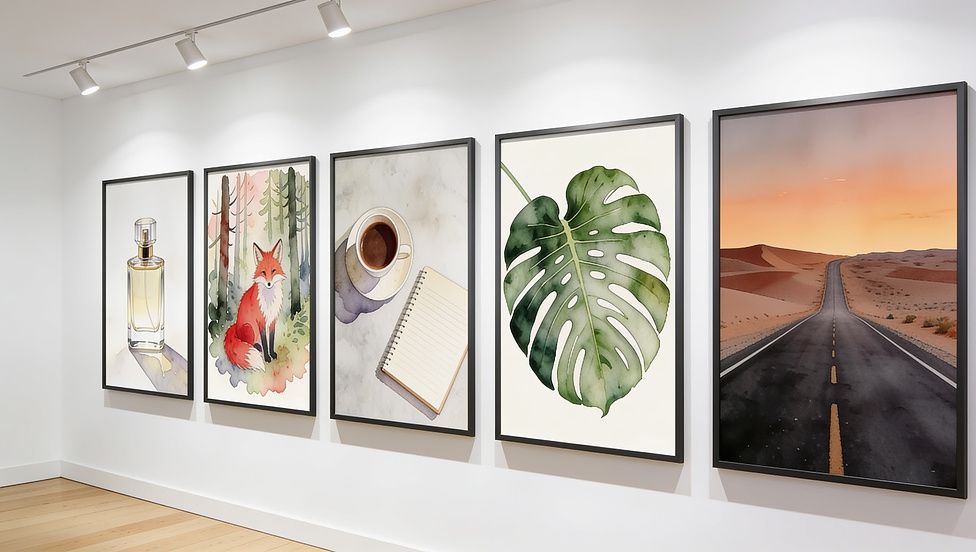
Illustration prompts work best when they name a medium and a palette rather than an artist. "Soft gouache" or "flat vector shapes" describes a look anyone can use, and it keeps the result your own.
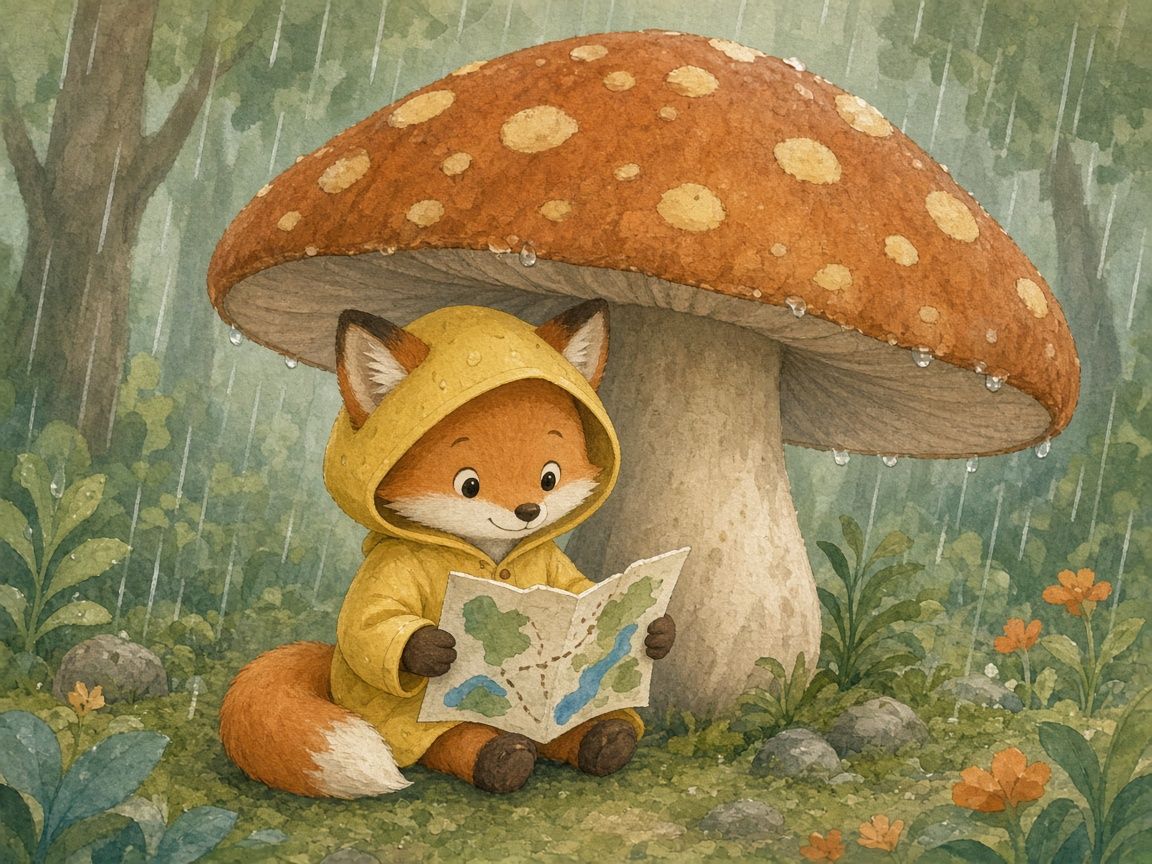
What to check: consistency if you need more than one picture. Ours matched the brief closely, though the texture reads more like watercolor and colored pencil than gouache, and the fox's ears poke out through the hood. Small details like these are exactly what drifts from one image to the next. For a whole series, keep one finished image as a reference for the next ones instead of relying on the prompt alone.
Posters and Flyers with Short Text
Some models now render short lines of text well, which makes simple posters and invitations possible in one step. Keep the wording short and put every word that must appear in quotation marks, so the model treats it as text to draw rather than as a description.
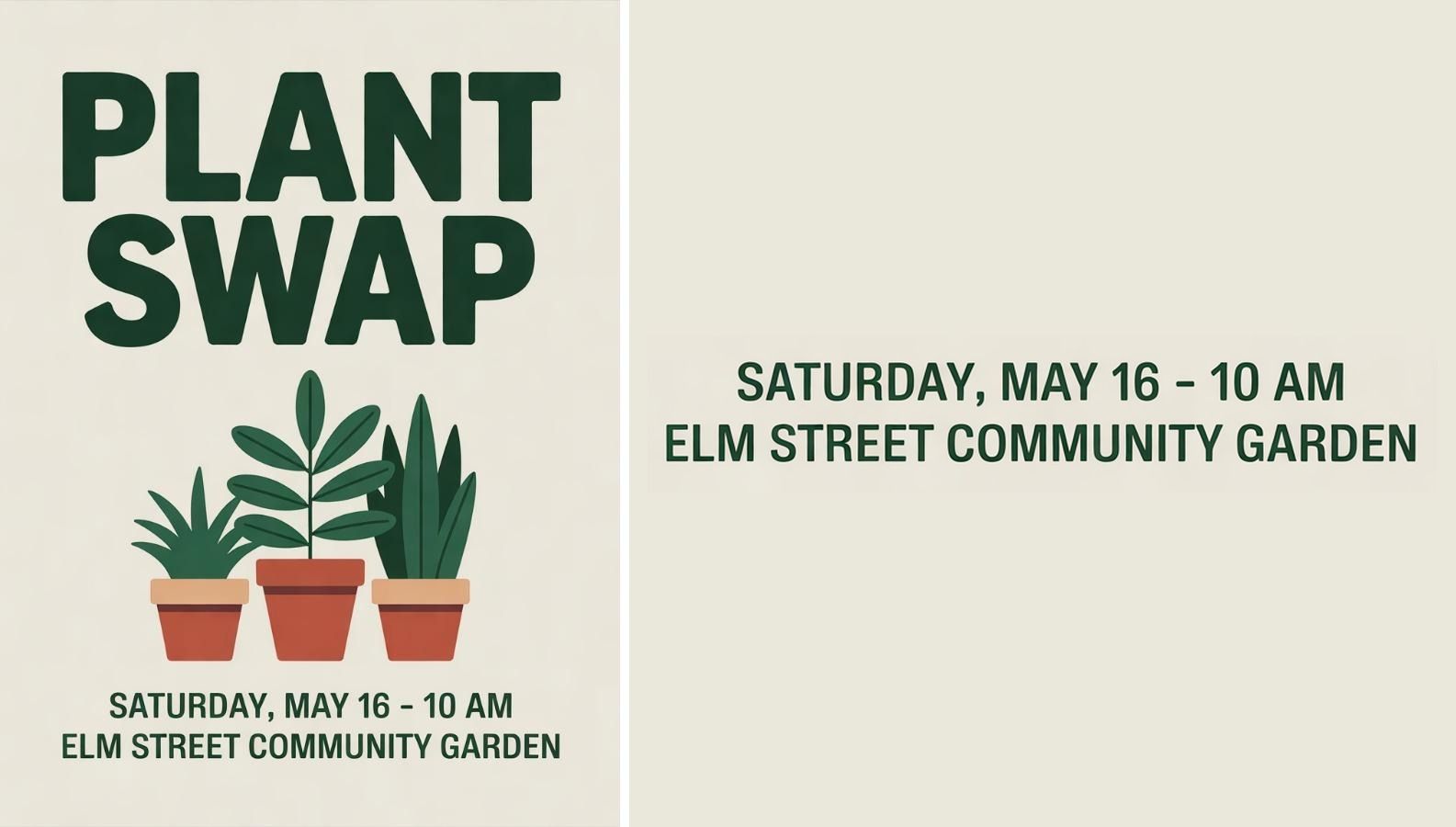
What to check: every letter, number, and date, read slowly. In ours, every word was spelled correctly, but the dot between the date and the time turned into a hyphen, and the last line came out in capitals right under the date instead of at the bottom. If the details change often, generate the artwork without text and set the type yourself, or start from a ready-made layout in DaVinci templates.
Edits to a Photo You Already Have
Editing keeps what's real and changes only what you name. Here, the bottle from the first example went into an image-to-image editor with a request for a new setting.
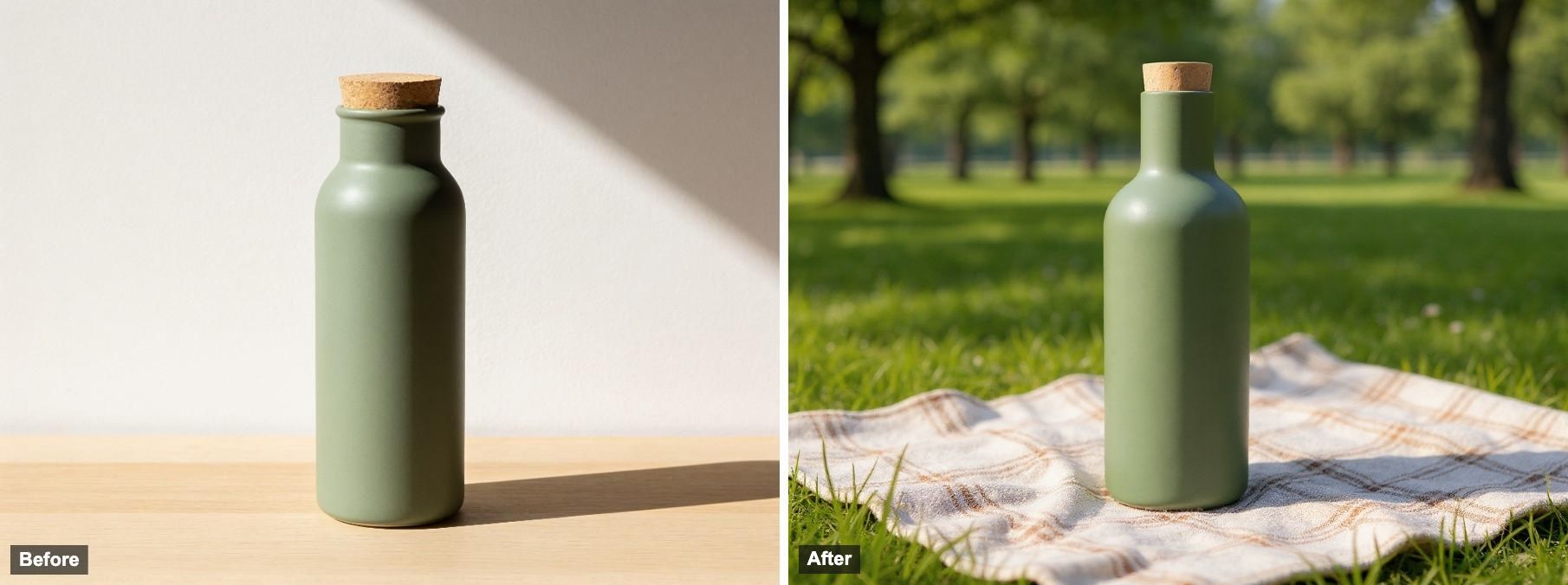
What to check: the parts you asked to keep. Ours kept the color, the cork, and the overall size, but the shoulders came out a little squarer and the small lip at the rim disappeared. Compare the outlines side by side before you use an edited product photo.
How to Write Your Own Prompt from These Examples
All five prompts follow the same habits, and they carry over to any subject.
- Start with what the image is for: a product photo, a post background, a poster. The model picks framing and style from that first phrase.
- Name the main subject and the few objects around it. Leave out anything you don't care about, so the model doesn't spend detail on it.
- Describe the light and the color palette in plain words, like "soft daylight from the left" or "muted greens and warm oranges."
- Put exact text in quotation marks, and write "no text" when you want none.
- For edits, say what must stay the same before you say what should change.
Then generate a few versions and compare them. Results vary from one model to the next, so if a prompt keeps failing on one thing, like text or hands, try another model in the AI image generator before rewriting the prompt.
AI Image Ideas to Try Next
A seasonal version of an existing product photo: autumn leaves, snow, or a summer table.
A set of matching blog or slide backgrounds in your brand colors.
Coloring pages or simple line art for a class or a family event.
Room or window display concepts before you buy anything.
Stickers or icons in one consistent style for a small shop.
Concept sketches for a story, game, or costume, made in an AI art generator.
Where AI Images Still Fall Short
Long or exact text: a headline usually works, but a menu, label, or paragraph often comes out with misspellings or invented letters.
Logos and brand details: a model can't reproduce your logo or packaging reliably from a description. Add real brand assets in an editor.
The same character across many images: faces, outfits, and proportions drift between generations unless you work from a reference image.
Hands, counts, and small mechanics: extra fingers, the wrong number of items, or a bicycle chain that goes nowhere still show up.
Real people and real events: don't generate recognizable people without their consent, and don't use generated images as evidence of something that happened.
How to Prevent These Problems
Most of these problems can be headed off in the prompt, and the rest can be fixed after generation. The first tool to reach for is a negative prompt: a short list of what you don't want in the image.
Some models have a separate field for it. Where there isn't one, end the main prompt with a "no" line, the way the examples above end with "No logo, no text." Name only the problems you actually see, such as "extra fingers, misspelled text, watermark," because a long list of exclusions tends to weaken the main description.
For each problem above, this is what usually works:
For long or exact text, keep only a short headline in the prompt, in quotation marks, and add "no other text" to the negative prompt. Set menus, labels, and paragraphs in an editor afterwards.
For logos and brand details, put "logo, brand name, lettering" in the negative prompt and place your real logo file on top of the finished image.
For the same character across many images, generate the first image, then use it as a reference image for every new one and repeat the same description of the face, hair, and outfit word for word.
For hands and counts, state the exact number ("three cinnamon rolls," "five fingers on each hand"), add "extra fingers, fused fingers, duplicate objects" to the negative prompt, and generate a few versions so you can pick the cleanest one. If one small area is still wrong, fix just that area with an inpainting or image-to-image edit instead of starting over.
For real people and events, no prompt setting helps, because the limit is consent and honesty rather than image quality. Use a fictional person, or work with photos you have the rights to.
Can You Use AI-Generated Images Commercially?
That depends on the tool's terms and on what you put into the prompt. DaVinci's Terms of Use set the conditions for its outputs, so read them before you use an image in an ad, on packaging, or for a client. Whatever the tool, you're responsible for the inputs: use reference images you have the rights to, and leave out other companies' logos and trademarks and the likeness of real people.
Drafted with AI assistance and reviewed by Irmak Bayrakdar. Last updated: November 3, 2026.