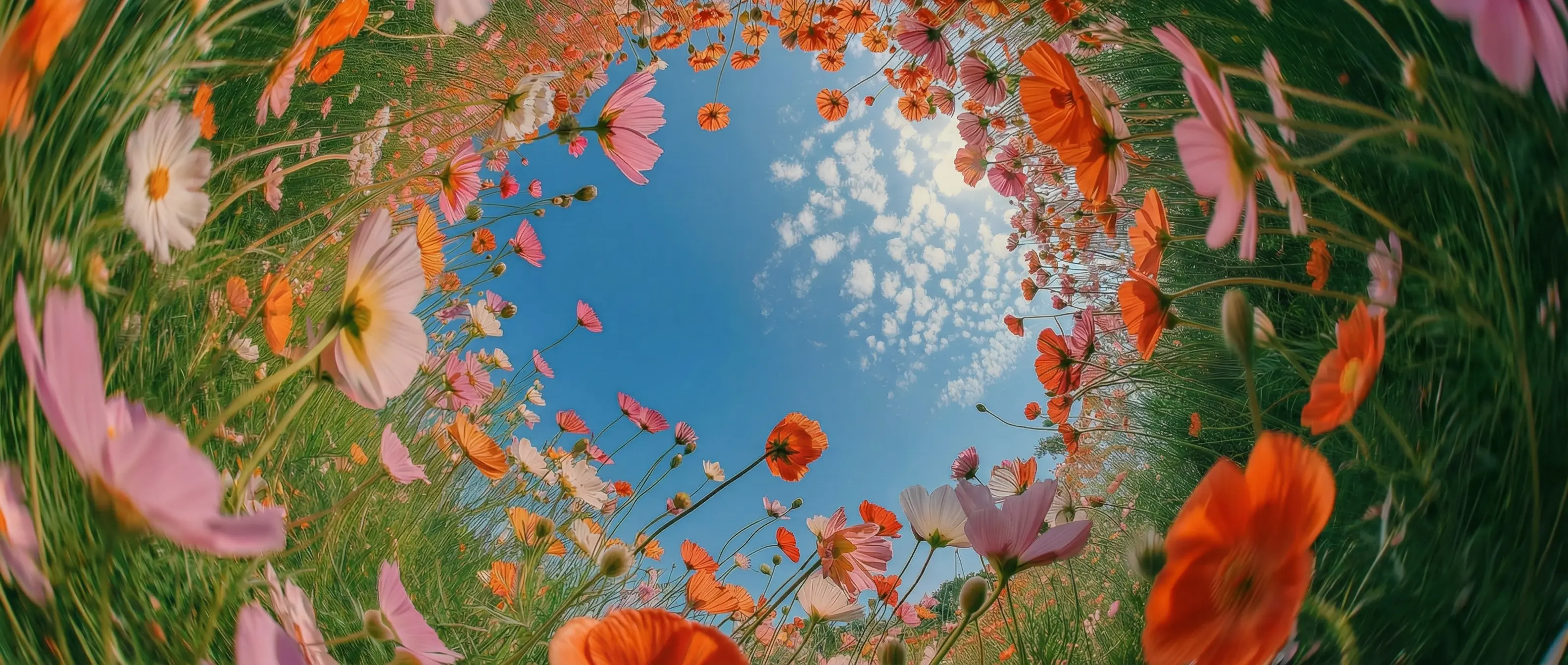
360p through 4K in DaVinci
Four resolution steps in one model in DaVinci. Rough an idea out at 360p where it costs least, then render the version you actually keep at full 4K.
Four resolution steps in one model in DaVinci. Rough an idea out at 360p where it costs least, then render the version you actually keep at full 4K.
Inside DaVinci, audio is generated natively alongside the picture, so the clip arrives finished rather than silent and waiting on a separate edit.
Three to ten seconds through DaVinci. Long enough for a hook, a product beat, or a cut-in, without paying for footage you were only going to trim away.
16:9 and 9:16, the two orientations most work actually ships in in DaVinci. Generate for the placement instead of cropping into it afterwards.
Start creating with Gemini Omni Flash 1.1 by following a few simple steps directly inside the DaVinci AI Toolkit.
Gemini Omni Flash 1.1 by Google suits creators who need short video quickly, with the option to finish in 4K through DaVinci.
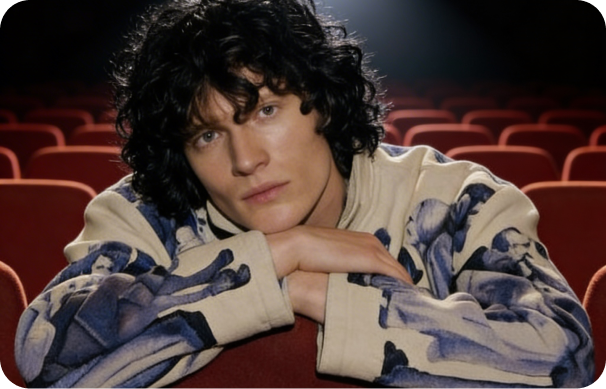
Inside DaVinci, make short vertical clips at the resolution the platform will actually serve, and keep the drafts cheap while you look for the one that works.
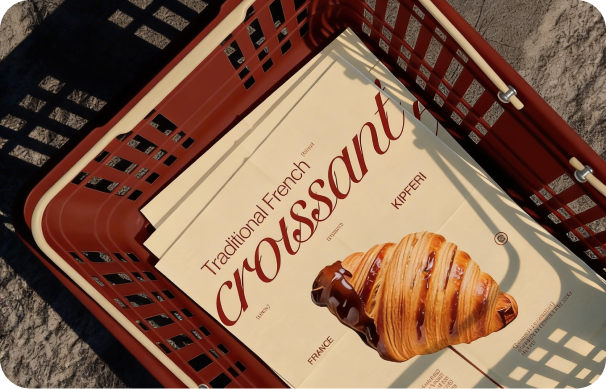
Test a concept at low resolution, then re-render the approved cut at 4K for the campaign inside DaVinci. Same prompt, same model, four steps of quality.
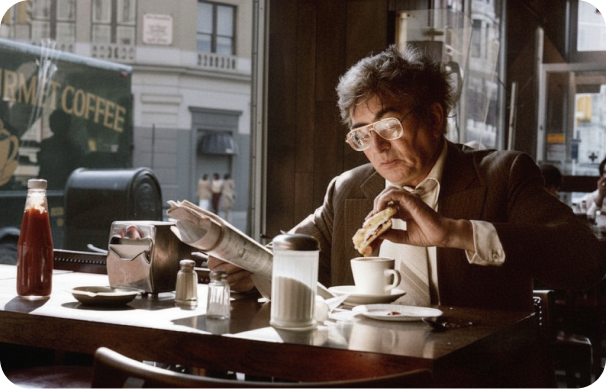
Inside DaVinci, generate short beats and inserts at high resolution, in landscape or vertical, without a separate finishing pass for the sound.
Inside DaVinci, make short vertical clips at the resolution the platform will actually serve, and keep the drafts cheap while you look for the one that works.
Test a concept at low resolution, then re-render the approved cut at 4K for the campaign inside DaVinci. Same prompt, same model, four steps of quality.
Inside DaVinci, generate short beats and inserts at high resolution, in landscape or vertical, without a separate finishing pass for the sound.
Enter a text prompt or upload an image, and generate a short video with sound in just seconds in DaVinci.
Inside DaVinci, Gemini Omni Flash 1.1 brings together a wide resolution range, native audio, and short-form output from text or a single image.
Generate from a written prompt, or animate a still image into motion that follows the direction you describe through DaVinci.
Four resolution tiers from a single model, covering quick low-cost drafts through to a finished 4K render in DaVinci.
Sound is produced with the visuals as part of the same generation, aligned to what happens on screen inside DaVinci.
Set the clip length per generation, sized for the short-form placements the output is usually built for through DaVinci.
Generate from a written prompt, or animate a still image into motion that follows the direction you describe through DaVinci.
Four resolution tiers from a single model, covering quick low-cost drafts through to a finished 4K render in DaVinci.
Sound is produced with the visuals as part of the same generation, aligned to what happens on screen inside DaVinci.
Set the clip length per generation, sized for the short-form placements the output is usually built for through DaVinci.