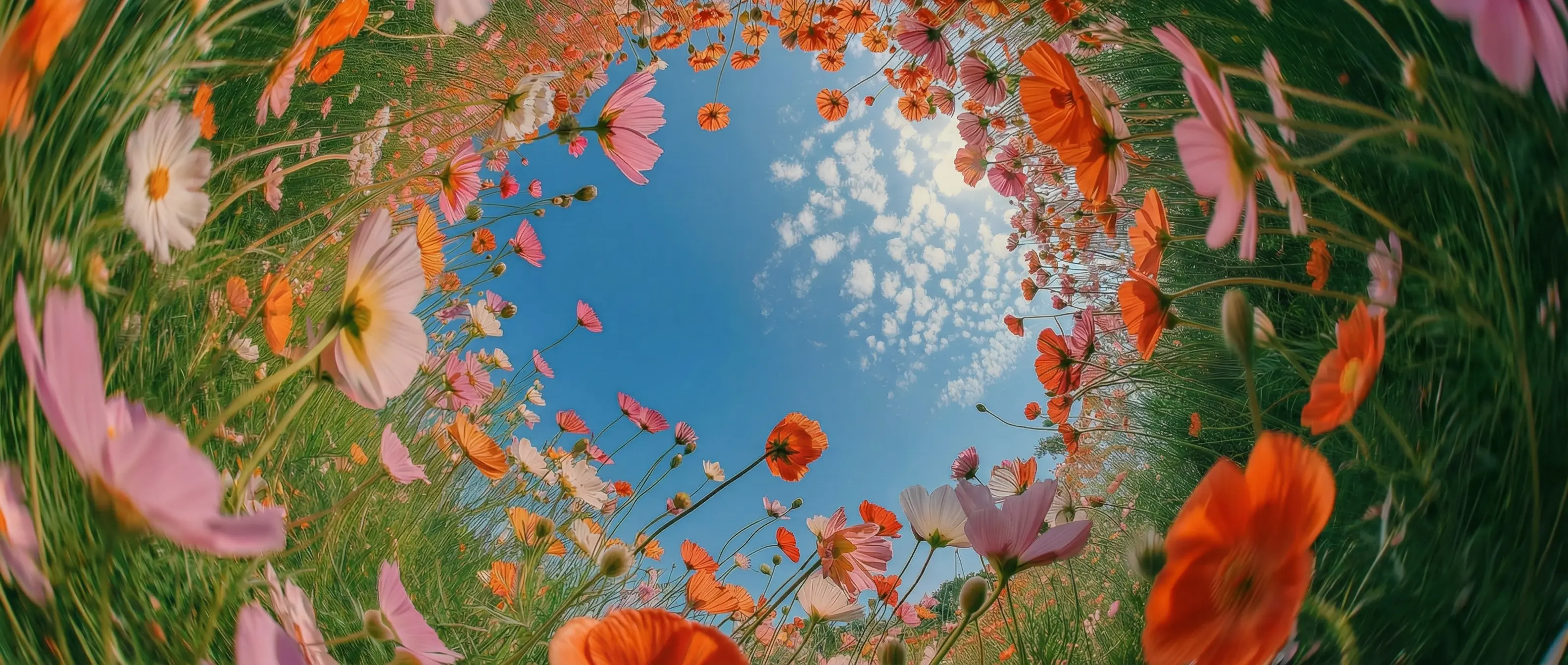
Realistic dance motion in DaVinci
In DaVinci, transfer real choreography onto any character with smooth, natural movement that stays on beat and true to the original moves.
AI Dance is one of the video tools in DaVinci, a creative platform that brings together models from different AI providers. Upload a photo and a reference clip, and real full-body movement transfers onto your character in seconds.
In DaVinci, transfer real choreography onto any character with smooth, natural movement that stays on beat and true to the original moves.
Map a complete dance — arms, legs, spins, and footwork — onto a single still image inside DaVinci. No rigging or mocap suit required.
In DaVinci, your character keeps the same face and identity through every move, even fast spins, group formations, and complex choreography.
Generate scroll-stopping dance clips built for TikTok, Reels, and Shorts — ready to post in seconds in DaVinci.
Make a dance video right inside the DaVinci AI Toolkit with a simple three-step workflow — no editing skills needed.
In DaVinci, AI Dance is built for creators, fans, and anyone who wants to make a character dance without animation skills or expensive software.
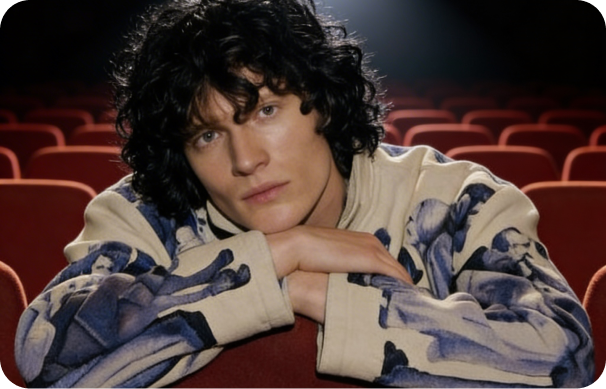
Turn selfies and characters into dance clips built for TikTok, Reels, and Shorts — and ride the latest trends in DaVinci.
Recreate your favorite idol choreography or dance to K-pop routines using any character image you like inside DaVinci.
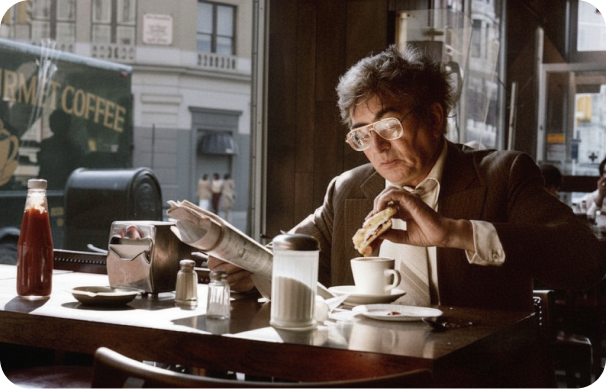
Make funny, chaotic, or wholesome dance edits with friends, pets, avatars, or literally anything that can groove through DaVinci.
Turn selfies and characters into dance clips built for TikTok, Reels, and Shorts — and ride the latest trends in DaVinci.
Recreate your favorite idol choreography or dance to K-pop routines using any character image you like inside DaVinci.
Make funny, chaotic, or wholesome dance edits with friends, pets, avatars, or literally anything that can groove through DaVinci.
Upload a photo and a dance reference, and DaVinci's AI brings your character to life — full-body dance motion in seconds, no editing required.
Inside DaVinci, AI Dance focuses on accurate full-body motion transfer, mapping real choreography onto your character with consistent, high-quality results at speed.
Map dance moves from any reference clip onto your character with smooth transitions and on-beat pacing through DaVinci.
Capture arms, legs, hips, and footwork accurately — even fast, complex choreography reads cleanly in DaVinci.
The model understands complex dance motion, producing movement that feels alive, expressive, and on rhythm inside DaVinci.
Keep the same face and body throughout the dance, ideal for repeatable, shareable character content through DaVinci.
Map dance moves from any reference clip onto your character with smooth transitions and on-beat pacing through DaVinci.
Capture arms, legs, hips, and footwork accurately — even fast, complex choreography reads cleanly in DaVinci.
The model understands complex dance motion, producing movement that feels alive, expressive, and on rhythm inside DaVinci.
Keep the same face and body throughout the dance, ideal for repeatable, shareable character content through DaVinci.